Enable attachments in your CCP so customers and agents can share and upload files
You can allow customers and agents to share files using chat, email, and tasks, and allow agents to upload files to cases. After you complete the steps in this topic, an attachment icon automatically appears in your agent's Contact Control Panel so they can share attachments on chats, emails, and tasks.
Important
The Attachments page in the Connect Customer admin website, where you
configure attachment file types and size limits, is not available in the legacy
https://
domain. If your instance still uses the legacy domain, update it to the
your-instance-alias.awsapps.com/connect/https://
domain before you complete step 3 in this topic. For more information, see Update your Connect Customer domain in this guide.your-instance-alias.my.connect.aws/
Important
You must complete steps 1 and 4 in this topic (create an Amazon S3 bucket and configure a CORS policy) for email attachments. If you don't do this, yet have selected Enable Attachments sharing for your instance, the email channel will not work for your instance.
For a list of supported file types, see Connect Customer feature specifications.
If you are not using the hosted communications widget, you need to update your customer-facing chat interfaces to support attachment sharing.
Using a custom chat application? Check out the APIs we've added to support attachment sharing: StartAttachmentUpload, CompleteAttachmentUpload, and GetAttachment.
Using a custom agent application? Check out the attached file APIs: StartAttachedFileUpload, CompleteAttachedFileUpload, and GetAttachedFile, BatchGetAttachedFileMetadata, and DeleteAttachedFile.
Step 1: Enable attachments
-
Open the Connect Customer console at https://console.aws.amazon.com/connect/
. On the instances page, choose the instance alias. The instance alias is also your instance name, which appears in your Connect Customer URL. The following image shows the Connect Customer virtual contact center instances page, with a box around the instance alias.

-
On the Data storage page, under the Attachments, choose Edit, select Enable Attachments sharing, and then choose Save.
Storage options appear, similar to the following image.

-
You can change the Amazon S3 bucket location where attachments are stored. By default, your existing Connect Customer bucket is used, with a new prefix for attachments.
Note
Currently, Connect Customer doesn't support S3 buckets with Object Lock enabled.
The attachments feature uses two Amazon S3 locations: a staging location and a final location.
Note the following about the staging location:
-
The staging location is used as part of a business validation flow. Connect Customer uses it to validate the file size and type before it is available for download by using the
GetAttachedFileorGetAttachmentAPIs. -
The staging prefix is created by Connect Customer based on the bucket path you have selected. Specifically, it includes the S3 prefix for where you are saving files, with staging appended to it.
-
We recommend that you change the data retention policy for the staging prefix to one day. This way you won't be charged for storing the staging files. For instructions, see How do I create a lifecycle rule for an S3 bucket? in the Amazon S3 User Guide.
Warning
-
Only change the lifecycle for the file staging location. If you accidentally change the lifecycle for the entire Amazon S3 bucket, all transcripts and attachments will be deleted.
-
S3 objects are permanently deleted if S3 bucket versioning is not enabled.
-
-
Step 2: Enable file attachment configuration permissions
To allow administrators to view or modify file attachment settings, assign the appropriate permissions in their security profile.
-
In the Connect Customer console, choose Users, Security profiles.
-
Select the security profile that you want to modify.
-
Expand the Settings section.
-
Under File attachments, choose the permissions to assign:
-
View — Allows users to view file attachment settings.
-
Edit — Allows users to view and modify file attachment settings, including attachment sizes and types.
-
All — Grants both View and Edit permissions for file attachment settings.
-
-
Choose Save.
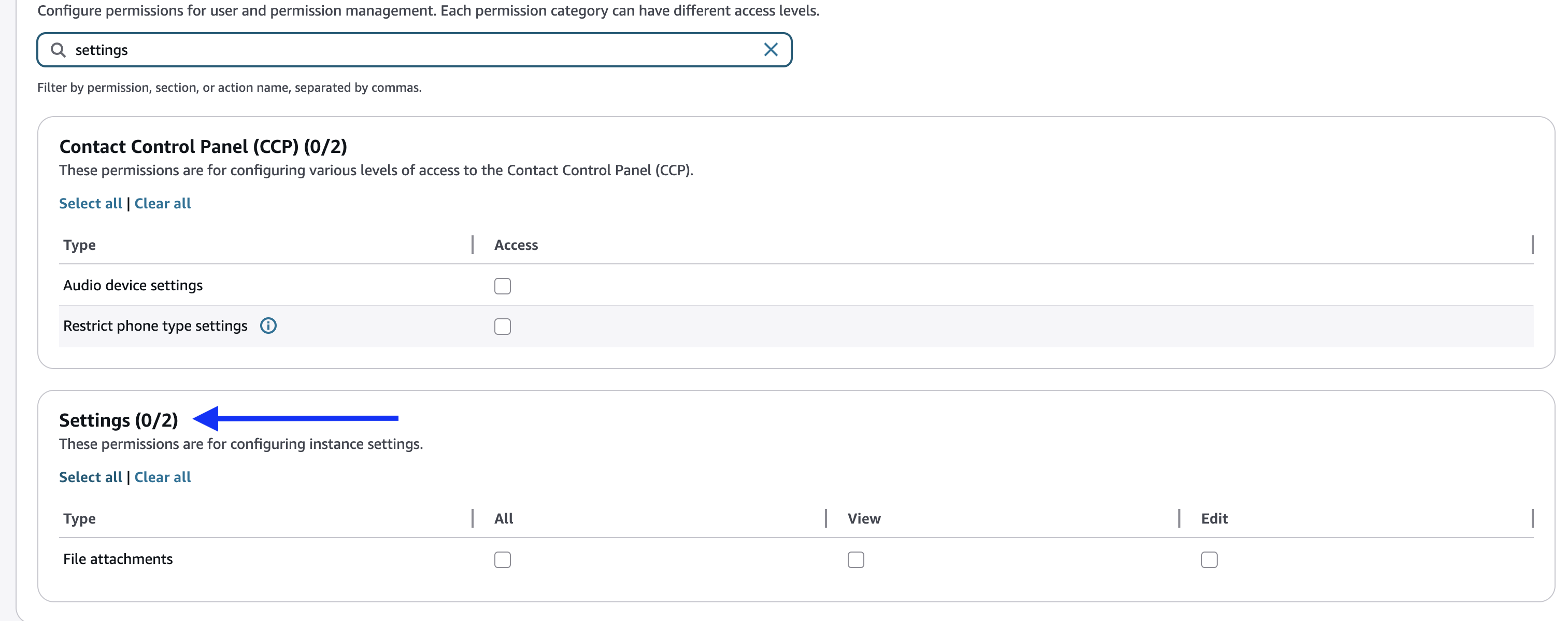
Users assigned a security profile with file attachment permissions see a Settings icon in the left navigation menu, below Channels. From there, they can view or edit file attachment settings based on their assigned permissions.
Step 3: Configure attachment file types and size limits
After you enable attachments and assign permissions, you can configure allowed file types and maximum file sizes for each channel independently. Configuration is scoped per channel: Email, Chat, Tasks, and Cases. Changes to one channel do not affect the others.
To configure attachment file types and size limits
-
In the Connect Customer admin website, choose the Settings icon (gear icon) in the left navigation pane.
-
On the Attachments page, choose Edit.
The following image shows the Attachments page in read-only mode.

-
Under Channels, choose Configure each channel and service individually to set different file types and size limits per channel. Alternatively, choose Apply one configuration to all channels and services to use the same settings across your entire instance.
-
Select the channel tab that you want to configure: Email, Chat, Tasks, or Cases.
-
To add a custom file extension, enter the extension in the Add file extensions field and choose Add extension. To remove an allowed file type, choose the X next to the extension.
-
Under Maximum file size, use the slider or enter a value to set the maximum attachment size for the selected channel.
-
For Chat, Tasks, and Cases, you can configure the maximum file size from 1 MB to 100 MB.
-
For Email, the maximum file size is 20 MB. You can reduce this limit but cannot exceed 20 MB.
The following image shows the attachment configuration in edit mode.

-
-
Choose Save.
Email attachment limitations
-
Email attachments cannot exceed 20 MB due to Amazon SES limitations.
-
Even if you add a file extension to the allowed list for email, Amazon SES might block certain file types. For a list of file types that SES blocks, see Unsupported attachment types in the Amazon Simple Email Service Developer Guide.
Note
You can also configure these options programmatically by using the UpdateAttachedFilesConfiguration API. The API uses the
AttachmentScope parameter to specify the channel
(EMAIL, CHAT, CASE, or TASK).
Step 4: Configure a CORS policy on your attachments bucket
To allow customers and agents to upload and download files, update your
cross-origin resource sharing (CORS) policy to allow PUT and
GET requests for the Amazon S3 bucket you are using for attachments.
This is more secure than enabling public read/write on your Amazon S3 bucket, which we
don't recommend.
To configure CORS on the attachments bucket
-
Find the name of the Amazon S3 bucket for storing attachments:
Open the Connect Customer console at https://console.aws.amazon.com/connect/
. -
In the Connect Customer console, choose Data storage, and locate the Amazon S3 bucket name.
-
Open the Amazon S3 console at https://console.aws.amazon.com/s3/
. -
In the Amazon S3 console, select your Amazon S3 bucket.
-
Choose the Permissions tab, and then scroll down to the Cross-origin resource sharing (CORS) section.
-
Add a CORS policy that has one of the following rules on your attachments bucket. For example CORS policies, see Cross-origin resource sharing: Use-case scenarios in the Amazon S3 Developer Guide.
-
Option 1: List the endpoints from where attachments will be sent and received, such as the name of your business web site. This rule allows cross-origin PUT and GET requests from your website (for example, http://www.example1.com).
Your CORS policy might look similar to the following example:
[ { "AllowedMethods": [ "PUT", "GET" ], "AllowedOrigins": [ "http://www.example1.com", "http://www.example2.com" ], "AllowedHeaders": [ "*" ] } ] -
Option 2: Add the
*wildcard toAllowedOrigin. This rule allows cross-origin PUT and GET requests from all origins, so you don't have to list your endpoints.Your CORS policy might look similar to the following example:
[
    {
        "AllowedMethods": [
            "PUT",
            "GET"
        ],
        "AllowedOrigins": [
            "*"
            ],
       "AllowedHeaders": [
            "*"
            ]
    }
]
-
Step 5 (Optional): Integrate with the APIs to enhance your custom UIs
If you are skipping the out-of-the-box Chat UI or Agent workspace, you can use the Connect Customer Participant attachments APIs, or Connect Customer attached files APIs to build your own UIs and provide attachments support for Cases and Chats. For the general steps in working with both sets of APIs, see Working with attachments.
Next step
We recommend enabling attachment scanning to meet compliance requirements or security policies that your organization might have in place for file sharing. For more information, see Set up attachment scanning in Connect Customer.
Attachments not appearing?
If your agents report problems receiving and sending attachments in chat messages, see Internal firewall or missing CORS policy prevents access to chat, email, task, or case attachments.
