Customize the theme of a workspace
You can use themes to customize the visual appearance of a workspace, so it aligns with the brand identity of your organization. Custom themes can serve multiple purposes:
Support multiple brand identities: If your organization manages multiple products or services with unique branding, you can create a unique workspace for each, so users that are assigned to more than one see the logo, font and color scheme aligned with the brand they are currently managing.
Differentiate between departments or business units: Design different themes for different departments or business units, to help users quickly identify their current context.
Create client-specific user interfaces: For businesses serving multiple clients, create branded workspaces that match each client's brand identity.
Themes consist of a logo, a favicon, a font family, and a set of colors. By default, your workspace will use the Connect Customer theme. In this example, the default settings have been replaced for AnyCompany, including the logo and color palette.
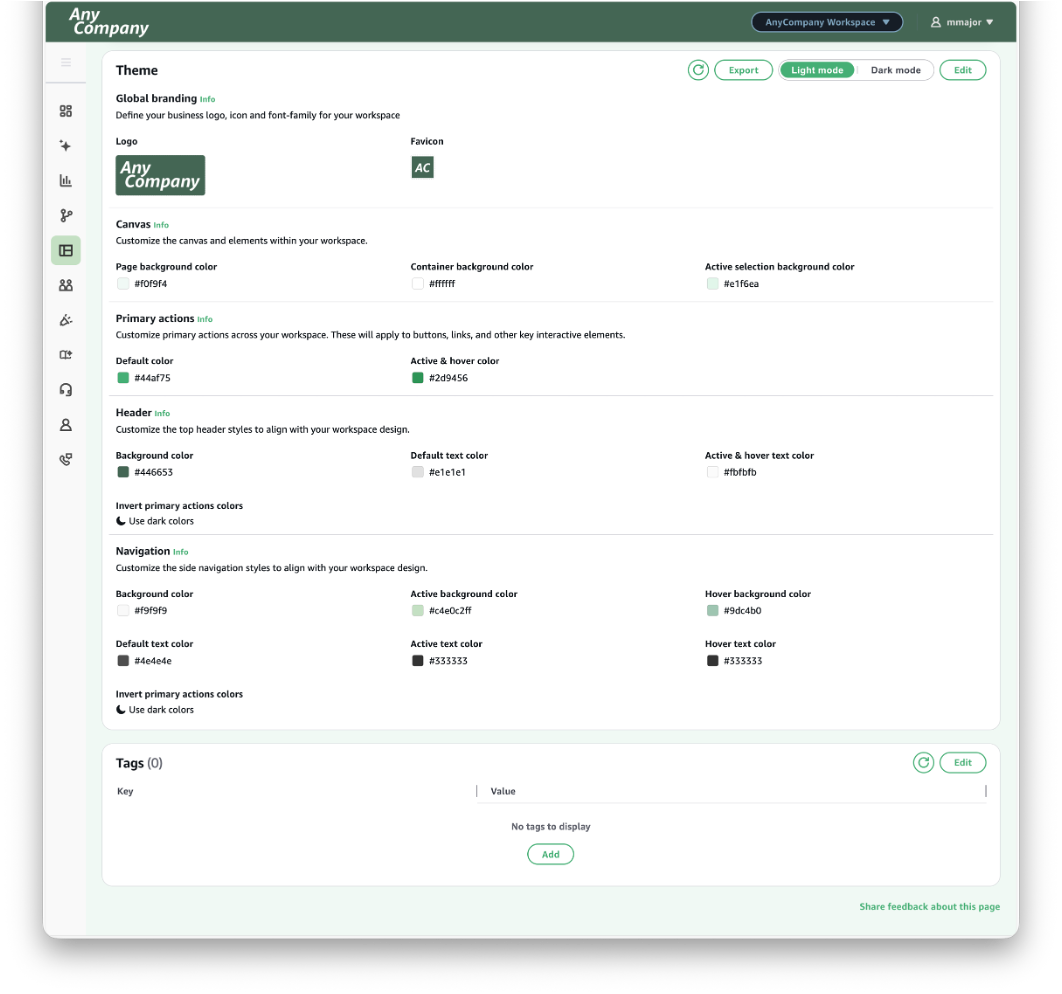
Logo – You can replace the default Connect Customer logo that appears at the top left of a workspace. To set a new logo, prepare and upload an image file in the specified dimensions and format.
Favicon – You can also replace the default Connect Customer favicon that commonly appears in your browser's tab and bookmark bars, history, and search results. To set a new favicon, prepare and upload an image file in the specified dimensions and format.
Font family – Change the typography used throughout your workspace. To use a different font family, select one of the options from the drop-down menu.
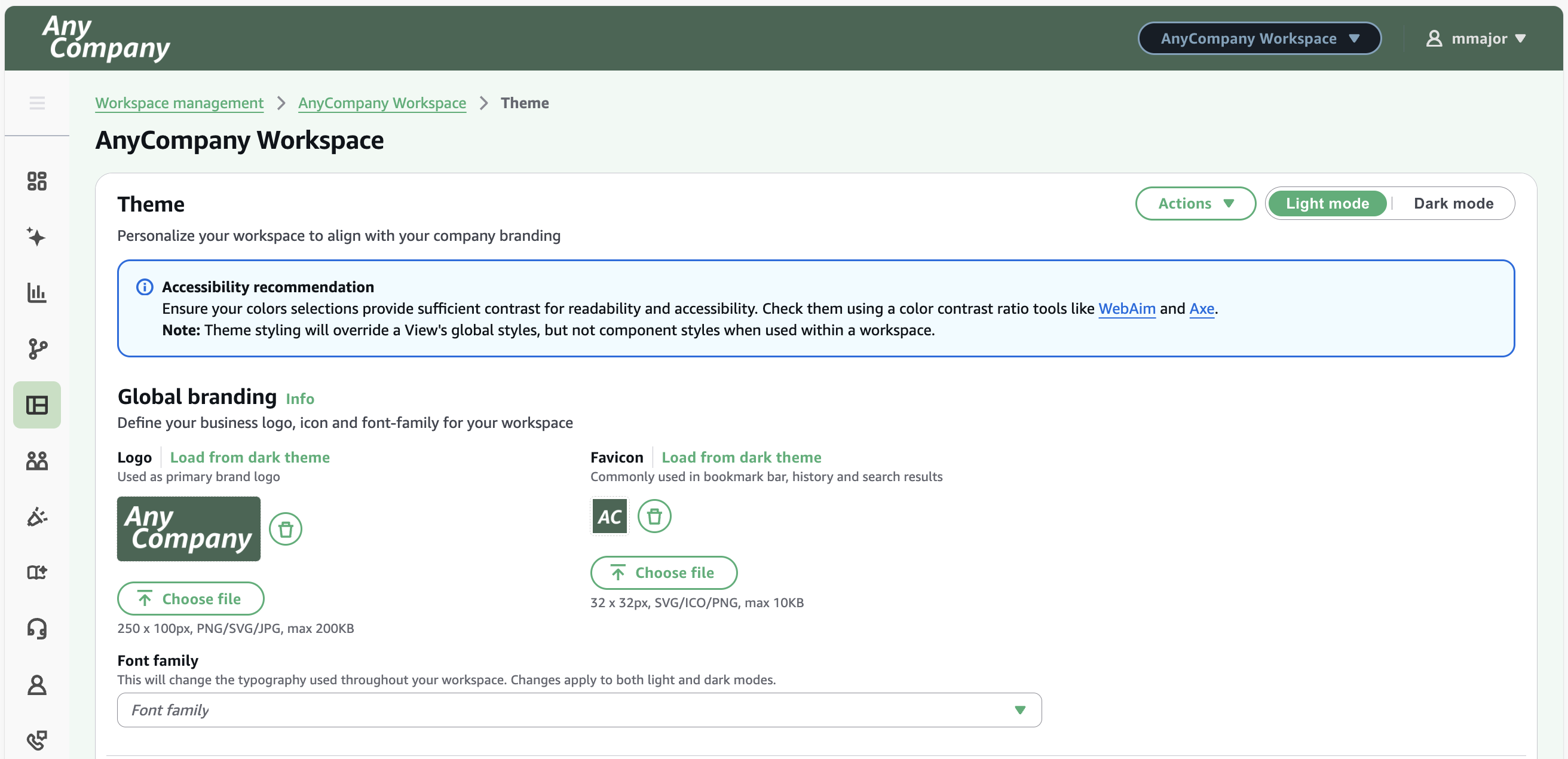
Actions
The actions drop-down menu provides the following options:
Export – Outputs theme configurations into a JSON file (in the same format as required for import) so it can be easily uploaded into another workspace.
Import – Import theming configurations either from other workspaces directly or upload a JSON file with these configurations. The format of the JSON file follows the same structure as the export file and the theme object on the workspace resource.
Reset – Similar to Cancel, this reverts changes back to what was last saved.
Reset to default – Changes the theme back to the standard theme offered by Connect Customer.
Customize the color palette
You can customize the palette of colors that are applied throughout a workspace. You can set a color with its hex code; Red, Green, and Blue (RGB) values; hue, saturation, and lightness (HSL) values; or name.
Note
Default colors provide sufficient contrast to make sure that content is readable and usable by all individuals, including those with visual impairments. If colors are changed, they should be tested for accessibility.
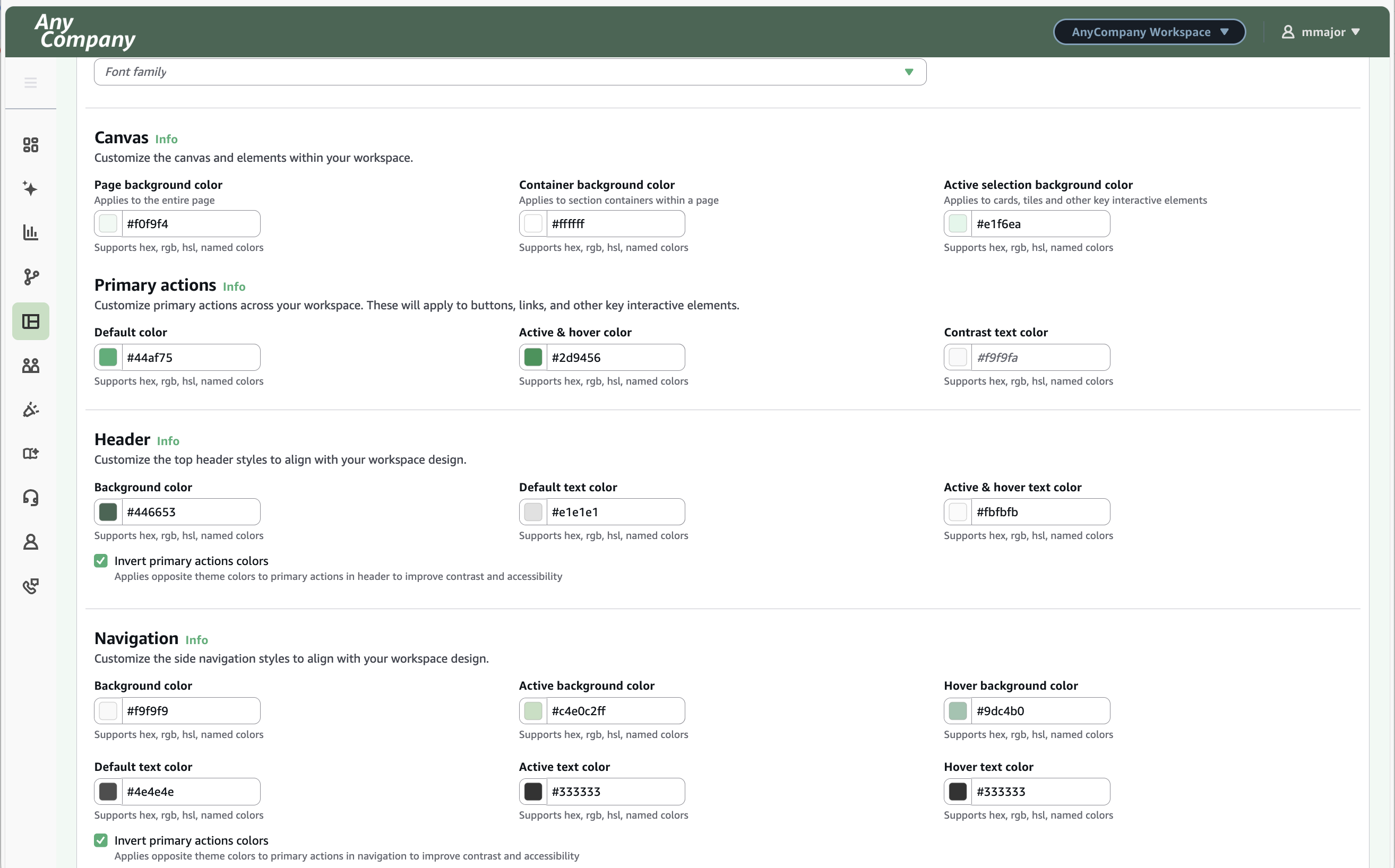
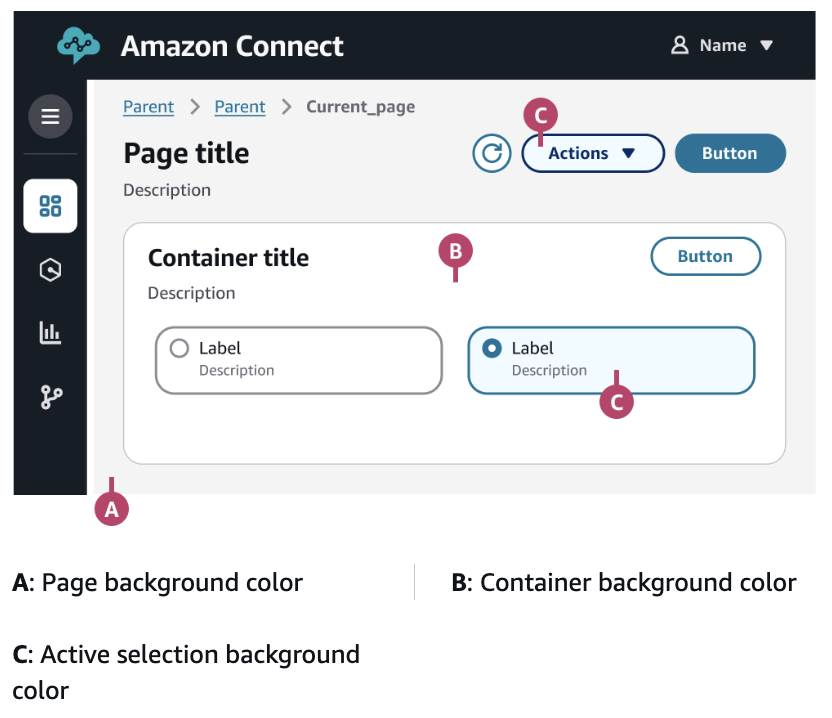
Colors for the canvas will apply to the background elements on your workspace.
Colors for primary actions will apply to buttons, links, and other key interactive elements.
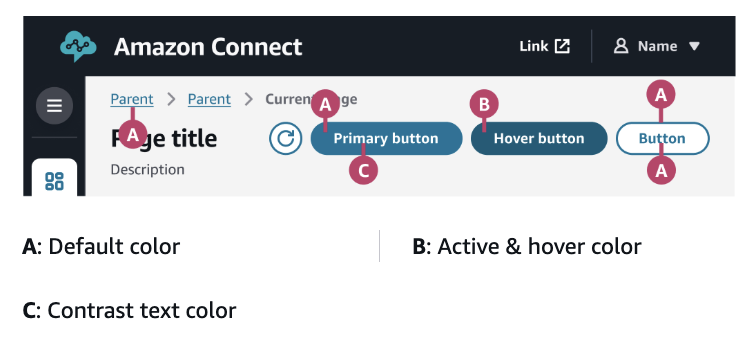
Colors for the header will apply to elements of the header bar and settings menu at the top of a workspace.
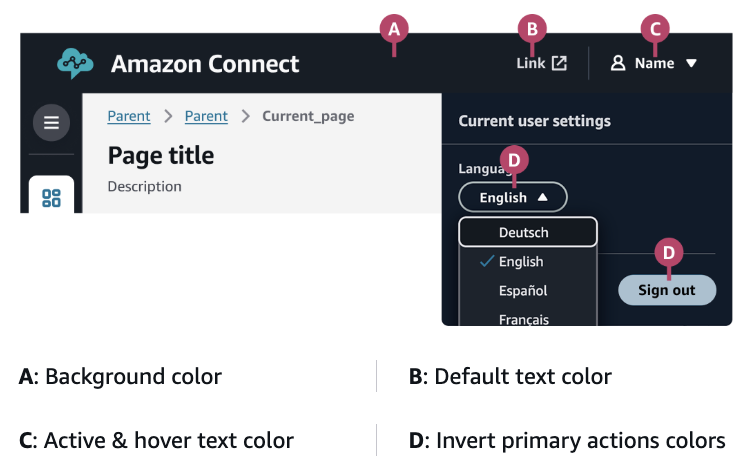
Colors for the navigation will apply to the navigation bar on the left side of a workspace.
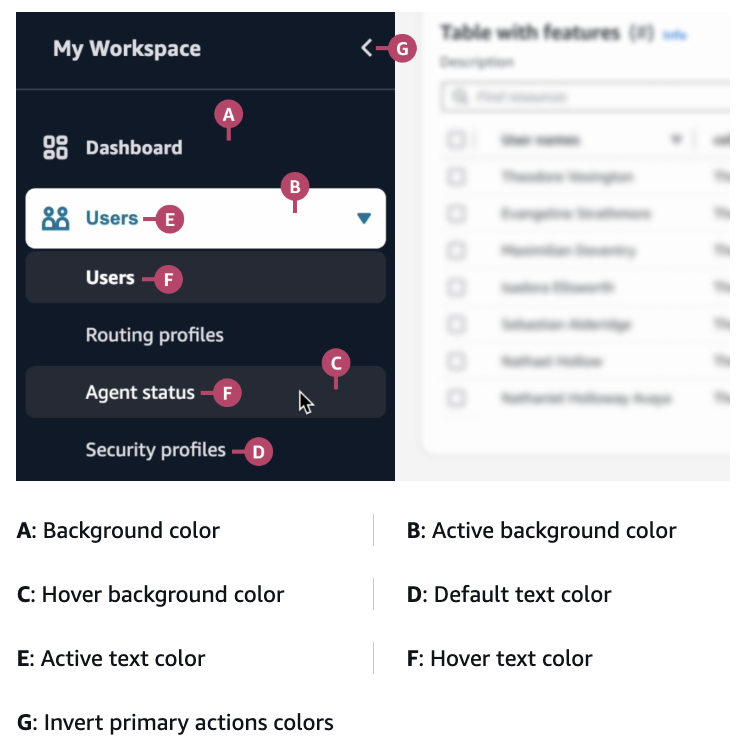
Important considerations
Test thoroughly to ensure the desired appearance, as well as accessibility (for example, sufficient contrast).
If a style element is inconsistent with your workspace configuration, check for component-level configurations in its view. Component styling takes precedence over workspace styling. (View styling is only considered in the absence of workspace or component styling).
Users can specify light and dark mode, so test theme changes in both modes. If certain elements are not clear then specify a different logo, favicon, and set of colors for light and dark modes.
