Create conversational analytics rules using the Connect Customer admin website
With Conversational analytics rules, you can automatically categorize contacts, receive alerts, or generate tasks based on keywords that are used during a call, chat, or email, sentiment scores, customer attributes, and other criteria.
This topic explains how to create rules using the Connect Customer admin website. To create and manage rules programmatically, see Rules actions and the Connect Customer Rules Function language in the Connect Customer API Reference Guide.
Tip
For a list of rules feature specifications (for example, how many rules you can create), see Connect Customer Rules feature specifications.
Step 1: Define rule conditions for conversational analytics
-
On the navigation menu, choose Analytics and optimization, Rules.
-
Select Create a rule, Conversational analytics.
-
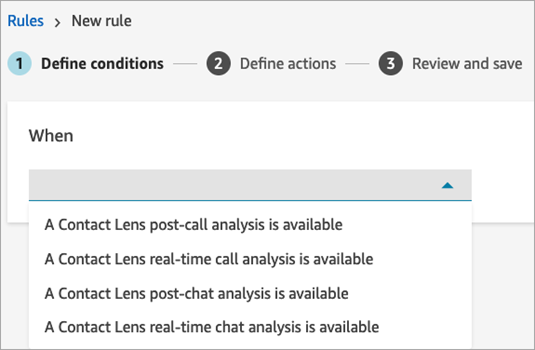
Under When, use the dropdown list to choose post-call analysis, real-time analysis, post-chat analysis, or email analysis.
-
Choose Add condition.
You can combine criteria from a large set of conditions to build very specific conversational analytics rules. Following are the available conditions:
-
Words or phrases: Choose from Exact match, Pattern match, or Semantic match to trigger an alert or task when keywords are uttered.
-
Natural Language - Semantic Match: Provide a natural language statement (for example, customer called to cancel their account) to match with conversation transcripts using generative AI, and take an action (for example, triggering a task, performing an evaluation) For more information, see Generative AI-powered semantic match
-
After contact work (ACW): Build rules to measure agent efficiency in completing after contact work.
-
Agent hierarchy: Build rules that run on a specific agent hierarchy. Agent hierarchies might represent geographical locations, departments, products, or teams.
To see list of agent hierarchies so you can add them to rules, you need the Agent hierarchy - View permission in your security profile.
-
Agent: Build rules that run on a subset of agents. For example, create a rule to ensure newly hired agents comply with company standards.
To see agent names so you can add them to rules, you need Users - View permissions in your security profile.
-
AI agent: Identify contacts where a particular Connect AI agent performed self-service or agent assistance. You can select multiple AI agents, or select a specific version of an agent.
To see AI agent names so you can add them to rules, you need AI agents - View permissions in your security profile.
-
AI agent - Escalation: Identify contacts when a Connect AI agent used for customer self-service escalated to a human.
To see AI agent names so you can add them to rules, you need AI agents - View permissions in your security profile.
-
Agent interaction duration: Build rules to identify contacts that had an agent interaction longer or shorter than what was expected. This feature applies to calls only.
-
Contact segment attributes: You can identify contacts within rules using custom contact segment attributes with values populated from other systems or using custom logic. You can define an attribute and set its value in flows. Custom segment attributes are only present on that specific contact ID, and not the entire contact chain. For example, you can build a rule that identifies that contact was pre-authenticated in IVR, before being connected with the agent.
To see the list of contact segment attributes to add to a rule, you need Predefined attributes - View permissions.
-
Disconnect reason: Build rules that check for why a contact disconnected. For example, if the agent disconnected before the customer, or if the contact was transferred.
-
Highest loudness score: Build rules that check for the peak loudness score (in decibels) during the conversation for the agent or the customer. Higher loudness (for example, over 70Db) might be associated with excitement or anger, while speech below a certain loudness score (for example, 30Db or lower) might be hard to understand.
-
Hold time: Build rules to identify contacts that had unusual hold times to identify opportunities to handle contacts more efficiently. You can set rules using longest hold time, total hold time, and number of holds. You can also check for hold time as a percentage of the total time the customer was connected with the agent (customer hold time divided by agent interaction duration and customer hold time).
-
Initiation method: Build rules that check whether a contact was inbound, outbound, transferred.
-
Contact attributes: Build rules that run on the values of custom contact attributes. For example, you can build rules specifically for a particular line of business or for specific customers, such as based on their membership level, their current country of residence, or if they have an outstanding order.
You can add up to five contact attributes to a rule.
-
Sentiment - Time period: Build rules that run on the sentiment analysis results (positive, negative, or neutral) over a trailing window of time.
For example, you can build a rule for when customer sentiment has remained negative for a set period of time. If the participant joined the contact later, the time period set here applies to when participant was present.
When rules are applied to contacts that don't have sentiment data, neutral sentiment is used.
-
Sentiment - Entire contact: Build rules that run on the value of sentiment scores over an entire contact. For example, you can build a rule when customer sentiment has remained low for the entire contact, you can create a task for a customer experience analyst to review the call transcript and follow-up.
When rules are applied to contacts that don't have sentiment data, neutral sentiment is used.
-
Interruptions: Build rules that detect when the agent has interrupted the customer for more than X times. This feature applies to calls only.
-
Non-talk time: Build rules that check for no speech detected. This might include periods of a customer being put on hold. You can check for total non-talk time, longest non-talk time period within a conversation, or percentage of non-talk time during the conversation. High non-talk time, such as a percentage of non-talk time exceeding 50 percent of the conversation, might indicate an opportunity to improve processes or agent coaching opportunities. This feature applies to calls only.
-
Response time: Build rules to identify contacts where the participant had a response time longer or shorter than what was expected: Average or Maximum.
For example, you can set a rule on the Agent greeting time, also known as First response time: after the agent joined the chat, how long until they sent the first greeting message. This will help you to identify when an agent took too long to engage with the customer.
-
Potential disconnect issue: Build rules that check for any technical issues (such as network connectivity, device problems). You can use this to exclude contacts from automated agent performance evaluations, where there were connectivity issues out of the agent's control.
-
Queues: Build rules that run on a subset of queues or check if the contact was not queued. Often organizations use queues to indicate a line of business, topic, or domain. For example, you could build rules specifically for your sales queues, tracking the impact of a recent marketing campaign, or, alternatively, rules for your customer support queues, tracking overall sentiment. For self-service interactions, you can check if the contact was never queued, potentially indicating successful self-service with an AI agent.
To see queue names so you can add them to rules you need Queues - View permissions in your security profile.
-
Routing profile: Identify contacts handled by agents mapped to a specific routing profile. The routing profile might indicate agent department or skill proficiency. For example, you might perform automated evaluations of agents with the routing profile New hires, trained on basic troubleshooting using different evaluation criteria versus tenured multi-skilled agents.
To see the routing profiles so you can add them to rules, you need Routing Profiles - View permissions in your security profile.
-
Talk time: Build rules using threshold of absolute time spent talking by the agent or the customer. This can be used to identify where the customer did not speak at all, leading the agent to disconnect or where the agent exhibited call avoidance behaviors such as not speaking after picking up the phone.
-
Agent interaction duration: Build rules to identify contacts that had an agent interaction longer or shorter than what was expected. This feature applies to calls only.
The following image shows a sample rule with multiple conditions for a voice contact.

The following image shows a sample rule with multiple conditions for a chat contact. The rule is triggered when the First response time is greater than or equal to 1 minute, and the agent did not mention any of the listed greeting words or phrases in their first response.
First response time = after the agent has joined the chat, how long until they sent the first message to the customer.

-
-
Choose Next.
Step 2: Define rule actions
-
Choose Add action. You can choose the following actions:
-
Create Task: this option is not available for real-time chat

-
-
Choose Next.
-
Review and make any edits, then choose Save.
-
After you add rules, they are applied to new contacts that occur after the rule was added. Rules are applied when Connect Customer conversational analytics analyzes conversations.
You cannot apply rules to past, stored conversations.
