Add an Amazon Lex bot to Connect Customer
End of support notice: On September 15, 2025, AWS will discontinue support for Amazon Lex V1. After September 15, 2025, you will no
longer be able to access the Amazon Lex V1 console or Amazon Lex V1 resources. To learn about migrating
to Amazon Lex V2, see Migrating a
bot.
In this article we guide you through the steps to add an Amazon Lex bot to Connect Customer.
With Amazon Lex, you can build conversational interactions (bots) that feel natural to your
customers. Connect Customer with Amazon Lex bots can also capture customer input as digits that customers enter
on their numeric keypad when used in a Connect Customer flow. This way customers can choose how they want to
enter sensitive information such as account numbers.
To follow along with this walkthrough, you need the following:
You can also use Amazon Lex to power interactive messages for Connect Customer chat. Interactive messages
are rich messages that present a prompt and pre-configured display options that a customer can
select from. These messages are powered by Amazon Lex and configured through Amazon Lex using a
Lambda. For more information, see Add Amazon Lex interactive messages for customers in chat.
Create an Amazon Lex bot
In this step you'll create a custom bot to demonstrate the Press or Say integration with
Connect Customer. The bot prompts callers to press or say a number that matches the menu option for the
task to complete. In this case, the input is checking their account balance.
- Amazon Lex
-
-
Open the Amazon Lex
console.
-
Choose Create bot.
-
On the Configure bot settings page, choose
Create - Create a blank bot and provide the
following information:
-
Bot name — For this walkthrough, name
the bot AccountBalance.
-
IAM permissions — Select a role if
you have one created. Otherwise, choose Create a role
with basic Amazon Lex permissions.
-
COPPA — Choose whether the bot is
subject to the Child Online Privacy Protection Act.
-
Session timeout — Choose how long the
bot should wait to get input from a caller before ending the
session.
-
Choose Next.
-
Provide language and voice specific information:
-
Language — Select language and locale
from the list of Languages and locales
supported by Amazon Lex.
-
Voice interaction — Select the voice
for your bot to use when speaking to callers. The default voice
for Connect Customer is Joanna.
-
Choose Done. The AccountBalance bot is created, and
the Intent page is displayed.
- Amazon Lex (Classic)
-
-
Open the Amazon Lex
console.
-
If you are creating your first bot, choose Get
Started. Otherwise, choose Bots,
Create.
-
On the Create your bot page, choose
Custom bot and provide the following
information:
-
Bot name — For this walkthrough, name
the bot AccountBalance.
-
Output voice — Select the voice for
your bot to use when speaking to callers. The default voice for
Connect Customer is Joanna.
-
Session timeout — Choose how long the
bot should wait to get input from a caller before ending the
session.
-
COPPA — Choose whether the bot is
subject to the Child Online Privacy Protection Act.
-
Choose Create.
In this step you'll determine how the bot responds to customers by providing intents, sample
utterances, slots for input, and error handling.
For this example, you'll configure the bot with two intents: one to look up account
information, and another to speak with an agent.
Create AccountLookup intent
- Amazon Lex
-
-
After you created the bot, you are on the
Intents page the Amazon Lex console. If you're
not there, you can get there by choosing Bots,
AccountBalance, Bot
versions, Draft version,
Intents. Choose Add
intent, Add empty intent.
-
In the Intent name box, enter
AccountLookup.
-
Scroll down the page to Sample utterances. In
this step you enter utterances that allow the customer to elicit the
AccountLookup intent. Enter the following utterances, and choose
Add utterance after each one.
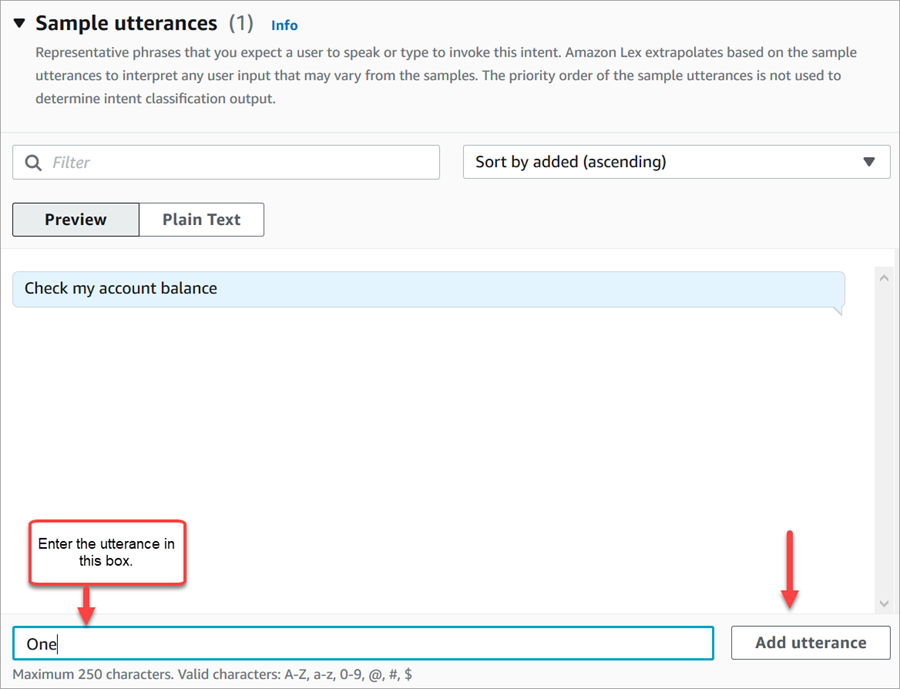
The following image shows where to add the utterance in the
Sample utterances section.
-
Scroll to the Slots section, and choose
Add slot. Complete the box as follows:
-
Required for this intent =
selected.
-
Name =
AccountNumber.
-
Slot type =
AMAZON.Number.
-
Prompts = the text to be spoken when
the call is answered. For example, ask callers to enter their
account number using their keypad: Using your
touch-tone keypad, please enter your account
number. Choose Add.
The following image shows a completed Add slot
section.
-
Scroll to the Closing responses section. Add a
message for the bot to say to customers. For example, Your
account balance is $1,234.56. (For this walkthrough, we
aren't going to actually get the data, which is what you would do in
reality.)
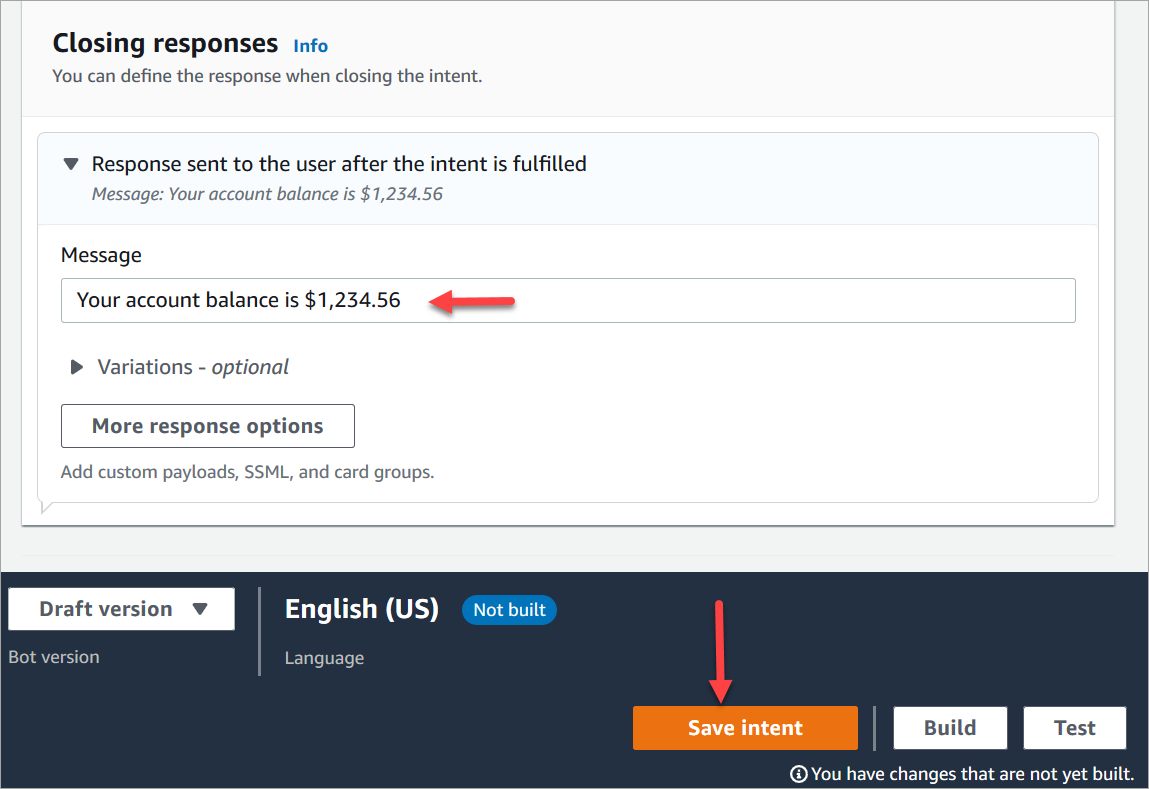
The following image shows a completed Closing
responses section.
-
Choose Save intent.
- Amazon Lex (Classic)
-
-
In the Amazon Lex console choose the + icon next to
Intents, and choose Create new
intent.
-
Name the intent AccountLookup.
-
Add a sample utterance, such as Check my account
balance, and choose the +
icon.
-
Add a second utterance, such as One and choose
the + icon. This assigns the utterance of "one"
or key press of "1" to the AccountLookup
intent.
You must add an utterance of "one" in the bot, and not the
number "1". This is because Amazon Lex doesn't support numeric input
directly. To get around this, later in this walkthrough you'll use
numeric input to interact with a Lex bot invoked from a flow.
-
Under Slots, add a slot named
AccountNumber.
The following image shows the location of the
Slots section on the page.
-
For Slot type, use the drop-down to choose
AMAZON.NUMBER.
-
For Prompt, add the text to be spoken when the
call is answered. For example, ask callers to enter their account
number using their keypad: Using your touch-tone keypad,
please enter your account number.
-
Choose the + icon.
-
Make sure that the Required check box is
selected.
-
In the Response section, add a message for the
bot to say to customers. For example, Your account balance
is $1,234.56.
-
Choose Save Intent.
Create SpeakToAgent intent
- Amazon Lex
-
-
Navigate to the Intents page: choose
Back to intents list.
-
Choose Add intent, Add empty
intent.
-
In the Intent name box, enter
SpeakToAgent, and then choose
Add.
-
Scroll down to Sample utterances section. Enter
the following utterances, which allow the customer to elicit the
SpeakToAgent intent:
-
Scroll down to the Closing responses section.
Add a message for the bot to say to customers. For example,
Okay, an agent will be with you
shortly.
-
Choose Save intent.
- Amazon Lex (Classic)
-
-
In the Amazon Lex console choose the + icon next to
Intents, and choose Create new
intent.
-
Name the intent SpeakToAgent.
-
Select SpeakToAgent.
-
Add a sample utterance, such as Speak to an
agent, and choose +.
-
Add a second utterance, such as Two, and choose
+.
-
Add a message that lets callers know that their call is being
connected to an agent. For example, "Okay, an agent will be with you
shortly."
-
Choose Save Intent.
Build and test the Amazon Lex bot
After you create your bot, make sure it works as intended.
- Amazon Lex
-
-
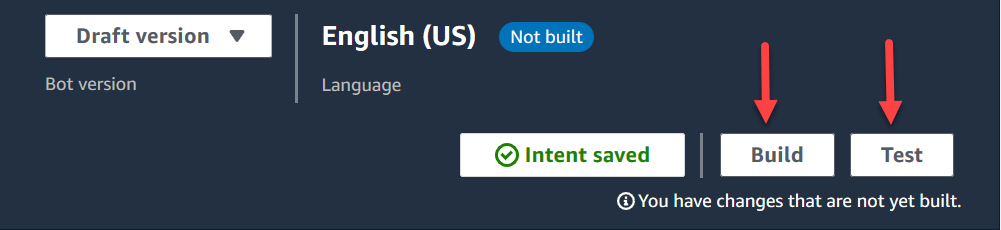
At the bottom of the page, choose Build. It might
take a minute or two. The following image shows where the
Build button is located.
-
When it's finished building, choose Test.
-
Let's test the AccountLookup intent: In the
Test Draft version pane, in the Type a
message box, type 1 and press Enter.
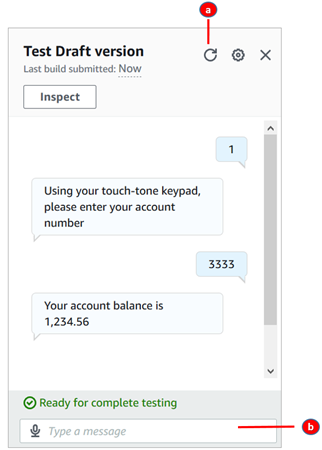
Then type a fictitious account number and press Enter. The following image
shows where you enter intent.
-
Clear the test box.
-
Type the intents you want to test.
-
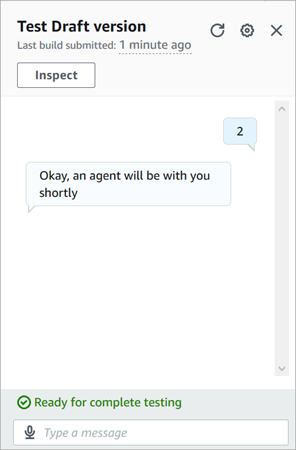
To confirm that the SpeakToAgent intent is working,
clear the test box, and then type 2 and press Enter.
The following image shows what the test looks like after you clear it and
then enter 2.
-
Close the Test Draft version pane.
- Amazon Lex (Classic)
-
-
Choose Build. It might take a minute or two.
-
When it's finished building, choose Test Chatbot,
as shown in the following image.
-
Let's test the AccountLookup intent: In the
Test Chatbot pane, in the Chat with
your bot box, type 1. Then type a
fictitious account number. In the following image, the arrow points to the
box where you type 1.
-
Choose Clear chat history.
-
To confirm that the SpeakToAgent intent is working,
type 2.
Create a bot version (Optional)
In this step you create a new bot version to use in an alias. It's how you create an alias
that can be used in a production environment. Test aliases are subject to lower throttling
limits. Although this is a test walkthrough, creating a version is a best practice.
- Amazon Lex
-
-
If you're on the Intents page, choose
Back to intents list.
-
On the left menu, choose Bot versions.
-
Choose Create version.
-
Review the details of the AccountBalance bot, and
then choose Create.
This creates a version of your bot (Version 1). You can switch versions
on an non-test alias without having to track which version is getting
published.
Create an alias for the bot
- Amazon Lex
-
-
In the left menu, choose Aliases.
-
On the Aliases page, choose Create
alias.
-
In the Alias name box, enter a name, such as
Test. Later in this walkthrough you'll use this
alias to specify this version of the bot in your flow.
In a production environment, always use a different alias than TestBotAlias for
Amazon Lex and $LATEST for Amazon Lex classic. TestBotAlias and $LATEST
support a limited number of concurrent calls to an Amazon Lex bot.
For more information, see Runtime quotas.
-
For Associated version, choose the version you just
created, such as Version 1.
-
Choose Create.
- Amazon Lex (Classic)
-
-
Choose Publish.
-
Provide an alias for your bot. Use the alias to specify this version of
the bot in the flow, for example, Test.
In a production environment, always use a different alias than TestBotAlias for
Amazon Lex and $LATEST for Amazon Lex classic. TestBotAlias and $LATEST
support a limited number of concurrent calls to an Amazon Lex bot.
For more information, see Runtime Service Quotas.
-
Choose Publish.
Add the Amazon Lex bot to your Connect Customer instance
- Amazon Lex
-
-
Open the Connect Customer
console.
-
Select the Connect Customer instance that you want to integrate with your Amazon Lex
bot.
-
On the navigation menu, choose Flows.
-
Under Amazon Lex, use the dropdown to select the Region
of your Amazon Lex bot, and then select your Amazon Lex bot,
AccountBalance.
-
Select the Amazon Lex bot alias name from the dropdown
(Test), and then choose + Add Lex
Bot. The following image shows Amazon Lex section after it has
been configured.
Connect Customer uses Amazon Lex resource-based policies to make calls to your Amazon Lex
bot. When you associate an Amazon Lex bot with your Connect Customer instance, the
resource-based policy on the bot is updated to give Connect Customer permission to invoke
the bot. For more information on Amazon Lex resource-based policies, see How Amazon Lex works with IAM.
- Amazon Lex (Classic)
-
-
Open the Connect Customer
console.
-
Select the Connect Customer instance that you want to integrate with your Amazon Lex
bot.
-
On the navigation menu, choose Contact
flows.
-
Under Amazon Lex, select the Region of your Amazon Lex
classic bot from the dropdown, and then select your Amazon Lex classic bot.
It’s name will have the suffix "(Classic)". Then choose Add Lex
Bot.
Create a flow and add your Amazon Lex bot
If you're using an Amazon Lex V2 bot, your language attribute in Connect Customer must match the
language model used to build your Lex bot. This is different than Amazon Lex (Classic). Use a
Set voice block to indicate the Connect Customer
language model, or use a Set contact
attributes block.
Next, create a new flow that uses your Amazon Lex bot. When you create the flow, you configure
the message played to callers.
-
Log in to your Connect Customer instance with an account that has permissions for contact flows
and Amazon Lex bots.
-
On the navigation menu, choose Routing, Flows, Create Flow, and
type a name for the flow.
-
Under Interact, drag a Get customer input block onto the designer, and connect it
to the Entry point block.
-
Choose the Get customer input block to open it. Choose
Text to speech or chat text, Enter text.
-
Type a message that provides callers with information about what they can do. For
example, use a message that matches the intents used in the bot, such as "To check
your account balance, press or say 1. To speak to an agent, press or say 2." The
following image shows this message on the Properties page of the Get
customer input block.
-
Select the Amazon Lex tab, as shown in the following image.
-
In the Name dropdown, select the
AccountBalance bot you created earlier.
-
If you selected an Amazon Lex bot, under Alias use the
dropdown menu to select the bot alias, Test. from
-
Amazon Lex Classic bots have the suffix "(Classic)" appended to their names. If
you have selected a Classic bot, enter the alias you want to use in the
Alias field.
-
For Amazon Lex V2 bots, you also have the option of manually setting a bot
alias ARN. Choose Set manually, then either type the ARN
of the bot alias you want to use or set the ARN using a dynamic
attribute.
-
Under Intents, choose Add an
intent.
-
Type AccountLookup and choose Add another
intent. The following image shows the Intents
section configured with this information.
-
Type SpeakToAgent and choose Save.
Finish the flow
In this step you finish adding parts to the flow that run after the caller interacts
with the bot:
-
If the caller presses 1 to get their account balance, use a
Prompt block to play a message and disconnect the
call.
-
If the caller presses 2 to speak to an agent, use a Set
queue block to set the queue and transfer the caller to the queue,
which ends the flow.
Here are the steps to create the flow:
-
Under Interact, drag a Play prompt
block to the designer, and connect the
AccountLookup node of the Get customer
input block to it. After the customer gets their account balance
from the Amazon Lex bot, the message in the Play prompt block
plays.
-
Under Terminate/Transfer, drag a
Disconnect block to the designer, and connect the
Play prompt block to it. After the prompt message plays,
the call is disconnected.
To complete the SpeakToAgent intent:
-
Add a Set working queue block and connect it to the
SpeakToAgent node of the Get customer
input block.
-
Add a Transfer to queue block.
-
Connect the Success node of the Set customer queue flow
block to the Transfer queue.
-
Choose Save, then Publish.
Your finished flow will look something like the following image. The flow starts with
the Get customer input block. That block branches to Play
prompt or Set customer queue.
If your business uses multiple locales in a single bot, add a Set contact
attributes
block to the beginning of your flow. Configure this block to use the $.LanguageCode system attribute.
Assign the flow to a phone number
When customers call in to your contact center, the flow to which they are sent is the one
assigned to the telephone number that they called. To make the new flow active, assign it to a
phone number for your instance.
-
Open the Connect Customer console.
-
Choose Routing, Phone numbers.
-
On the Manage Phone numbers page, select the phone number to
assign to the flow.
-
Add a description.
-
In the Flow/IVR menu, choose the flow that you just
created.
-
Choose Save.
Try it!
To try the bot and flow, call the number you assigned to the flow. Follow the prompts.