Allow the Connect Customer Contact Control Panel (CCP) to access cookies
When logging into the CCP you may see one of these banners:
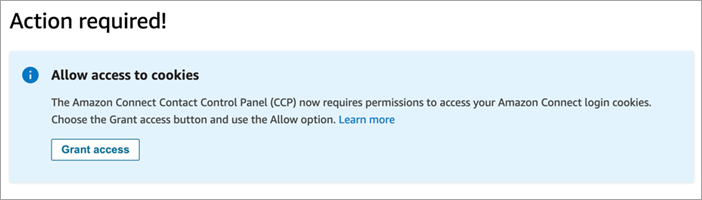
OR

Connect Customer uses cookies for authentication. Google Chrome requires you to authorize the use of Connect Customer cookies.
-
When you log in to the CCP, on the Allow access to cookies banner choose Grant access.
-
At the next prompt, choose Allow.
You may need to repeat these steps periodically, for example, if your organization requires it every 30 days.
What happens if you don't choose Grant access when prompted?
If you don't choose Grant access when prompted, you won't be able to log into the CCP. To enable access outside of the login workflow, perform the following steps:
-
Navigate to
chrome://settings/content/storageAccess. -
In the left navigation menu, choose Privacy and security.
-
Choose Third-party cookies.
-
Under You blocked these sites from using info they've saved about you, delete any entries associated with
awsapps.comorconnect.awsas shown in the following image.
-
You can close that instance of your browser.
-
Open your CCP. When prompted, choose Grant access, and then choose Allow.
