Integrate an MCP server with Connect Customer
To integrate an MCP server with Connect Customer, you must configure a Bedrock AgentCore gateway. The gateway transforms your APIs, Lambda functions, and services into MCP-compatible tools for AI agents.
Note
Only one instance can be associated with a gateway, and that instance must be configured with the gateway's Discovery URL in Bedrock AgentCore. Each gateway can only be used with one MCP server.
How to integrate an MCP server
-
On the Add integration page, enter the following information:
-
Integration information
-
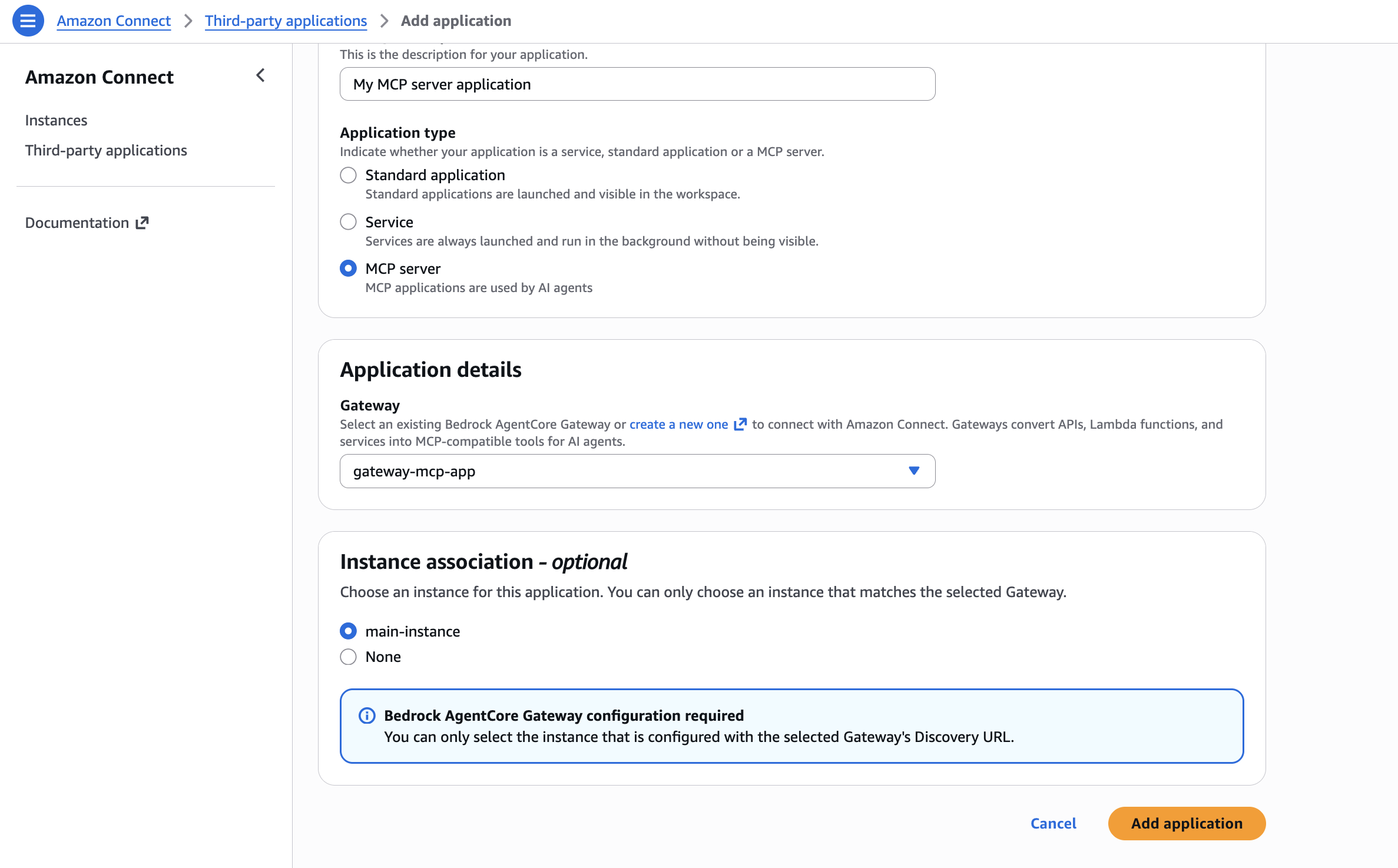
Display name – A friendly name for the application. This name is displayed on security profiles and to your agents on the tab in the agent workspace. You can change this name later.
-
Description (optional) – You can optionally provide a description for this application.
-
Integration type – Select MCP server.

-
-
Integration details
Select a Bedrock AgentCore gateway to connect with Connect Customer. Gateways convert APIs, Lambda functions, and services into MCP-compatible tools for AI agents. If no gateways currently exist, create a new one using Bedrock AgentCore.

A new gateway can be created in Bedrock AgentCore.
Note
The Discovery URL must follow this format:
[connect instance URL]/.well-known/openid-configuration. For example:https://my-instance.my.connect.aws/.well-known/openid-configuration.Configure the gateway's Allowed audiences field
In the gateway's Inbound Identity configuration, add the gateway ID to the Allowed audiences field. The JSON Web Token (JWT) that Connect Customer sends to the gateway carries the gateway ID in its
aud(audience) claim. When the gateway ID is missing from Allowed audiences, the gateway rejects the token and tool invocations fail.Allowed audiences is the only field you must set for Connect Customer. You can leave the Allowed clients, Allowed scopes, and Custom claims fields empty.
Add a supported protocol version to the gateway
The gateway's Supported Versions must include the Model Context Protocol (MCP) version that Connect Customer supports, which is
2025-03-26. Gateways that you create or edit in the console must include protocol version2025-03-26.To add the supported version, edit the gateway in Amazon Bedrock AgentCore. In Additional Configurations, add
2025-03-26to the Supported Versions field.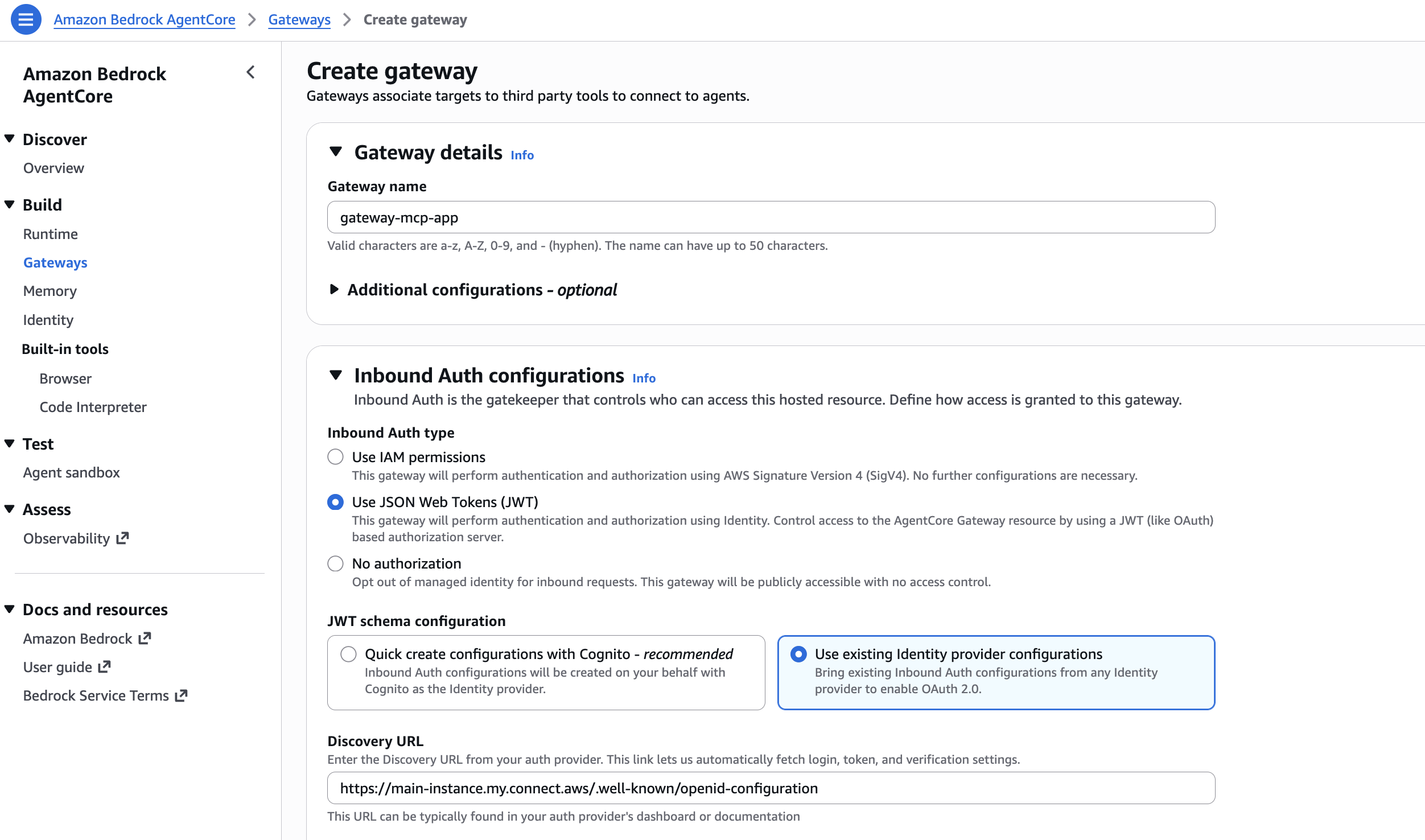
-
Instance association (optional)
Select the instance that is configured with the selected gateway's Discovery URL. Defaults to None. If you are not ready to select an instance or if no instance has been associated with the selected gateway's Discovery URL, you might still create the MCP server integration now and associate an instance later.
-
-
Choose Add integration.
-
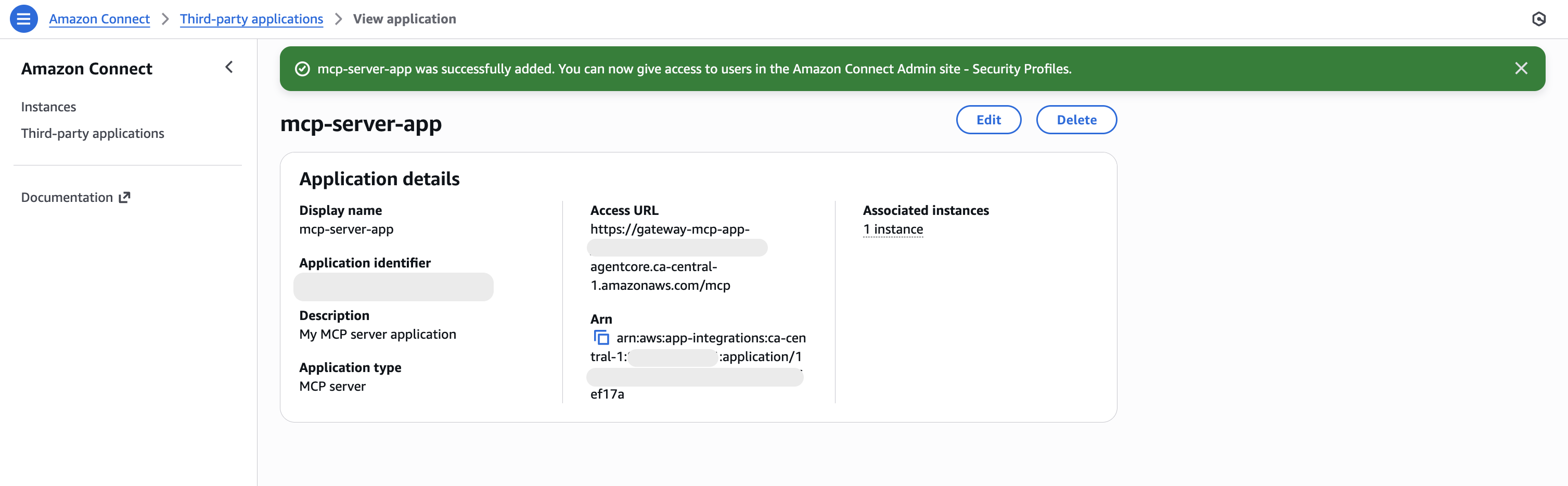
If the integration was successfully created, you will be sent to the View integration page where you will see a success banner and the integration summary.