Stability AI Image Services
You can use Stability AI Image Services with Amazon Bedrock to access thirteen specialized image editing tools designed to accelerate professional creative workflows. With Stability AI Image Services you can generate images from a sketch, restructure and restyle an existing image, or remove and replace objects within an image.
This section describes how to make inference calls to Stability AI Image Services using the InvokeModel. This section also provides code examples in Python and examples of images before and after using Stability AI Image Services.
Stability AI Image Services are available in the following categories:
Edit ‐ AI-based image editing services, including inpainting with masks (generative fill), or with words. Includes tools for product placement and advertising, as well as basic tools such as background removal.
Control ‐ May take prompts, maps and other guides. These services use ControlNets and similar technologies built on Stable Diffusion models.
Note
Subscribing to any edit or control Stability AI Image Service automatically enrolls you in all thirteen available Stability AI Image Services.
Request and response
The request body is passed in the body field of a request to
InvokeModel.
Model invocation request body field
When you make an InvokeModel call using Stability AI Image Services, fill the body field with a JSON object that looks like the following.
{
    'prompt': 'Create an image of a panda'
}
Model invocation responses body field
When you make an InvokeModel call using Stability AI Image Services, the response looks like the following
{
    'seeds': [2130420379],
    'finish_reasons': [null],
    'images': ['...']
}
seeds – (string) List of seeds used to generate images for the model.
-
finish_reasons – Enum indicating whether the request was filtered or not.
nullwill indicate that the request was successful. Current possible values:"Filter reason: prompt", "Filter reason: output image", "Filter reason: input image", "Inference error", null. -
images – A list of generated images in base64 string format.
For more information,
see https://platform.us.stability.ai/docs/api-reference#tag/v1generation
Upscale
The following section describes the upscale Stability AI Image Services.
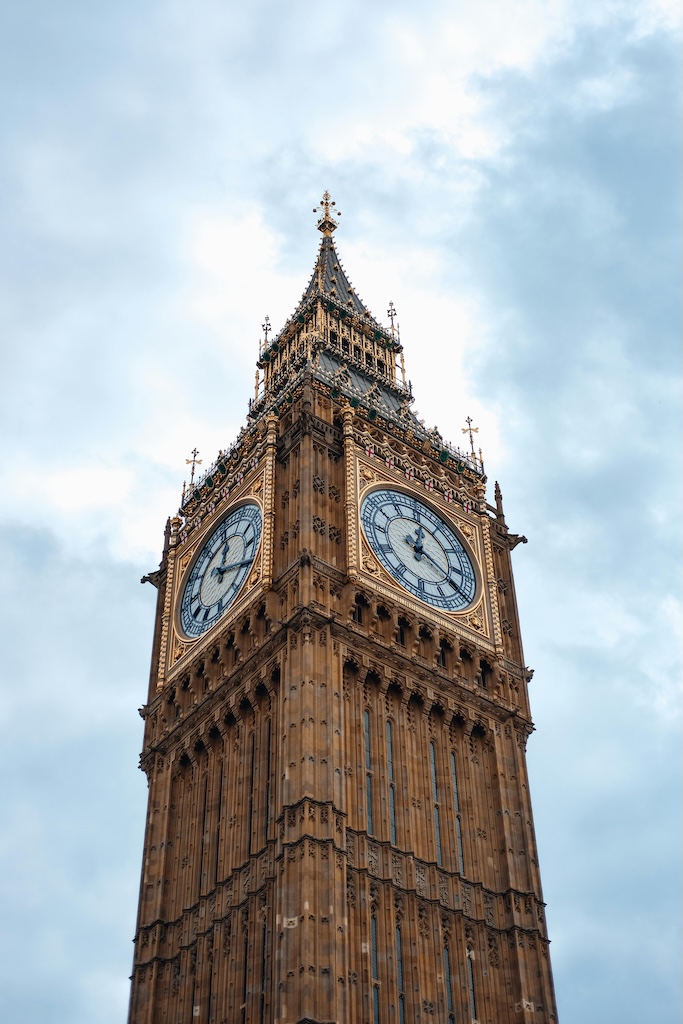
Creative Upscale takes images between 64x64 and 1 megapixel and upscales them to 4K resolution. This service can upscale images by 20 to 40 times while preserving and often enhancing quality. Creative Upscale works best on highly degraded images and is not for photos of 1 megapixel or above as it performs heavy reimagining.
Creative Upscale has the following required parameters:
prompt ‐ What you wish to see in the output image. A strong, descriptive prompt that clearly defines elements, colors, and subjects will lead to better results. To control the weight of a given word use the format (word:weight), where word is the word you'd like to control the weight of and weight is a value. A value 0 and 1.0 de-emphasized the word and a value between 1.1 and 2 emphasized the word . For example: The sky was a crisp (blue:0.3) and (green:1.8) would convey a sky that was blue and green, but more green than blue. Minimum 0 and Maximum 10000 characters.
image ‐ (string) The Base64 image to upscale. Every side of the image must be at least 64 pixels. Total pixel count must be between 4,096 and 1,048,576 pixels. Supported formats: jpeg, png, webp.
The following parameters are optional:
creativity ‐ (number) Indicates how creative the model should be when upscaling an image. Higher values will result in more details being added to the image during upscaling. Range between 0.1 and 0.5. Default 0.3
negative_prompt ‐ (string) A blurb of text describing what you do not wish to see in the output image. This is an advanced feature. Maximum 10000 characters.
seed ‐ (number) A specific value that is used to guide the 'randomness' of the generation. (Omit this parameter or pass 0 to use a random seed.) Range 0 to 4294967294. Default 0.
output_format ‐ (string) Dictates the content-type of the generated image. Enum: jpeg, png, webp. Default png.
style_preset ‐ Guides the image model towards a particular style. Enum: 3d-model, analog-film, anime, cinematic, comic-book, digital-art, enhance, fantasy-art, isometric, line-art, low-poly, modeling-compound, neon-punk, origami, photographic, pixel-art, tile-texture.
The following table shows the input and output images of a Creative Upscale operation using the following prompt: This dreamlike digital art captures a vibrant, kaleidoscopic Big Ben in London.
|
Input |
Output |
|---|---|
"Iconic Big Ben Tower Against Cloudy Sky" |

|
Conservative Upscale takes images between 64x64 and 1 megapixel and upscale them to 4K resolution. This service can upscale images by 20 to 40 times while preserving all aspects. Conservative Upscale minimizes alterations to the image and should not be used to reimagine an image.
Conservative Upscale has the following required parameters:
prompt ‐ What you wish to see in the output image. A strong, descriptive prompt that clearly defines elements, colors, and subjects will lead to better results. To control the weight of a given word use the format (word:weight), where word is the word you'd like to control the weight of and weight is a value. A value 0 and 1.0 de-emphasized the word and a value between 1.1 and 2 emphasized the word . For example: The sky was a crisp (blue:0.3) and (green:1.8) would convey a sky that was blue and green, but more green than blue. Minimum 0 and Maximum 10000 characters.
image ‐ (string) The Base64 image to upscale. Every side of the image must be at least 64 pixels. The total pixel count cannot exceed 9,437,184 pixels. Image aspect ratio must be between 1:2.5 and 2.5:1. Supported formats: jpeg, png, webp.
The following parameters are optional:
creativity ‐ (number) Indicates how creative the model should be when upscaling an image. Higher values will result in more details being added to the image during upscaling. Range between 0.1 and 0.5. Default 0.35
negative_prompt ‐ (string) A blurb of text describing what you do not wish to see in the output image. This is an advanced feature. Maximum 10000 characters.
seed ‐ (number) A specific value that is used to guide the 'randomness' of the generation. (Omit this parameter or pass 0 to use a random seed.) Range 0 to 4294967294. Default 0.
output_format ‐ (string) Dictates the content-type of the generated image. Enum: jpeg, png, webp. Default png.
The following table shows the input and output images of a Conservative Upscale operation using the following prompt: This dreamlike digital art captures a vibrant, kaleidoscopic Big Ben in London.
|
Input |
Output |
|---|---|

"Iconic Big Ben Tower Against Cloudy Sky" |

|
Fast Upscale enhances image resolution by 4 times using predictive and generative AI. This lightweight and fast service is ideal for enhancing the quality of compressed images, making it suitable for social media posts and other applications.
Fast upscale has the following required parameters:
image ‐ (string) The Base64 image to upscale. Width must be between 32 and 1,536 pixels. Height must be between 32 and 1,536 pixels. Total pixel count must be between 1,024 and 1,048,576 pixels. Supported formats: jpeg, png, webp.
output_format ‐ (string) Dictates the content-type of the generated image. Enum: jpeg, png, webp. Default png.
The following table shows the input and output images of a Fast Upscale operation.
|
Input |
Output |
|---|---|

"Iconic Big Ben Tower Against Cloudy Sky" |

|
Edit
The following section describes the edit Stability AI Image Services.
Inpaint intelligently modifies images by filling in or replacing specified areas with new content based on the content of a mask image.
Inpaint has the following required parameters:
prompt ‐ What you wish to see in the output image. A strong, descriptive prompt that clearly defines elements, colors, and subjects will lead to better results. To control the weight of a given word use the format (word:weight), where word is the word you'd like to control the weight of and weight is a value. A value 0 and 1.0 de-emphasized the word and a value between 1.1 and 2 emphasized the word . For example: The sky was a crisp (blue:0.3) and (green:1.8) would convey a sky that was blue and green, but more green than blue. Minimum 0 and Maximum 10000 characters.
image ‐ (string) The Base64 image to inpaint. Every side of the image must be at least 64 pixels. The total pixel count cannot exceed 9,437,184 pixels. Image aspect ratio must be between 1:2.5 and 2.5:1. Supported formats: jpeg, png, webp.
The following parameters are optional:
style_preset ‐ (string) Guides the image model towards a particular style. Enum: 3d-model, analog-film, anime, cinematic, comic-book, digital-art, enhance, fantasy-art, isometric, line-art, low-poly, modeling-compound, neon-punk, origami, photographic, pixel-art, tile-texture.
negative_prompt ‐ (string) A blurb of text describing what you do not wish to see in the output image. This is an advanced feature. Maximum 10000 characters.
seed ‐ (number) A specific value that is used to guide the 'randomness' of the generation. (Omit this parameter or pass 0 to use a random seed.) Range 0 to 4294967294. Default 0.
output_format ‐ (string) Dictates the content-type of the generated image. Enum: jpeg, png, webp. Default png.
mask ‐ (string) Controls the strength of the inpainting process on a per-pixel basis, either via a second image (passed into this parameter) or via the alpha channel of the image parameter.
Passing in a Mask ‐ The image passed to this parameter should be a black and white image that represents, at any pixel, the strength of inpainting based on how dark or light the given pixel is. Completely black pixels represent no inpainting strength while completely white pixels represent maximum strength. In the event the mask is a different size than the image parameter, it will be automatically resized.
Alpha Channel Support ‐ If you don't provide an explicit mask, one will be derived from the alpha channel of the image parameter. Transparent pixels will be inpainted while opaque pixels will be preserved. In the event an image with an alpha channel is provided along with a mask, the mask will take precedence.
grow_mask ‐ Grows the edges of the mask outward in all directions by the specified number of pixels. The expanded area around the mask will be blurred, which can help smooth the transition between inpainted content and the original image. Range between 0 and 20. Default 5. Try this parameter if you notice seams or rough edges around the inpainted content. Note that excessive growth may obscure fine details in the mask and/or merge nearby masked regions.
The following table shows the input and output images of an Inpaint operation.
|
Input |
Mask |
Output |
|---|---|---|

“Man in metropolis” generated by Stable Image Ultra, Prompts and edits by Sanwal Yousaf.
Licensed under CC BY 4.0 |

|

|
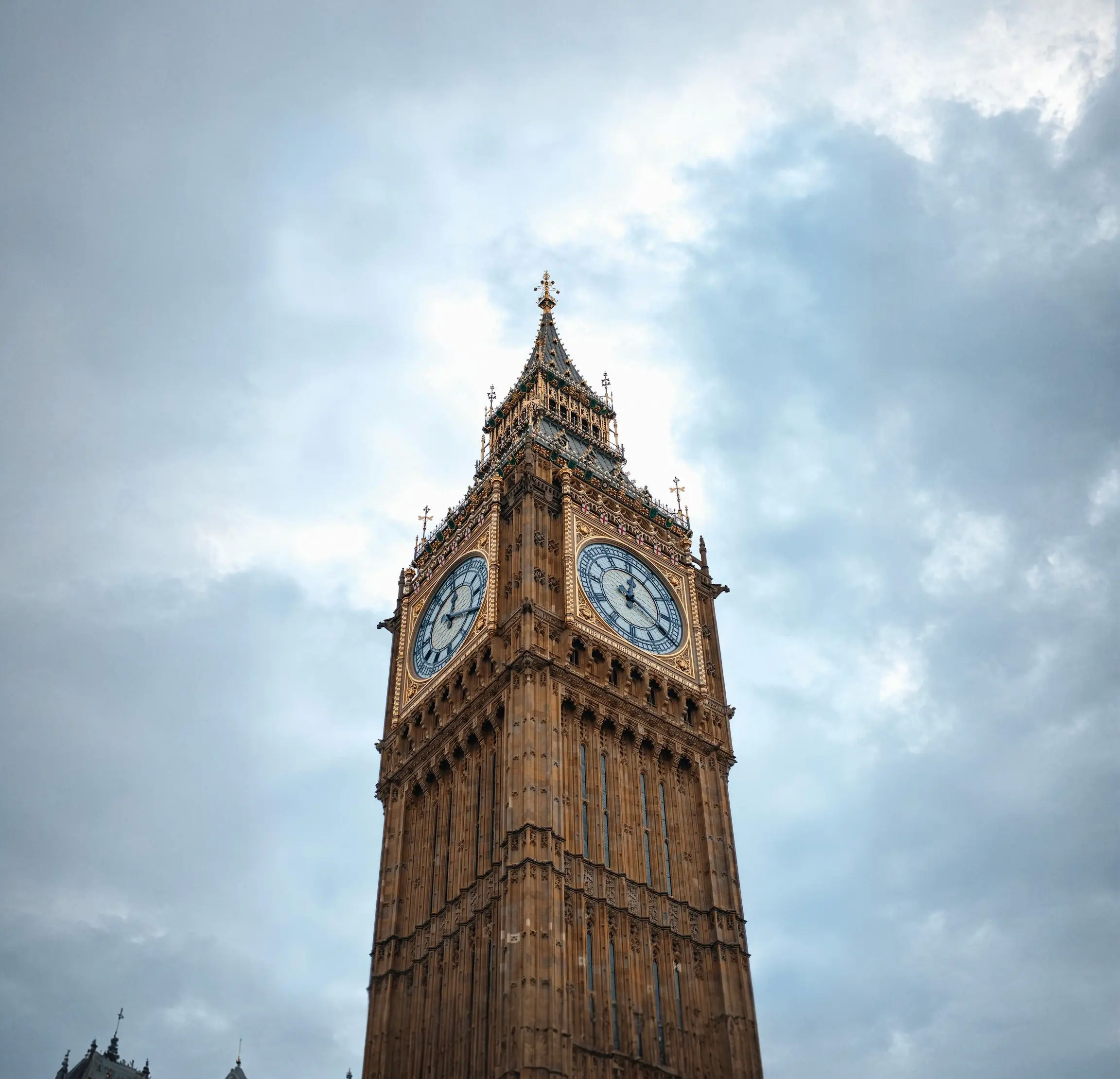
Outpaint inserts additional content in an image to fill in the space in any direction. Compared to other automated or manual attempts to expand the content in an image, the Outpaint service minimizes indications that the original image has been edited.
Outpaint has the following required parameters:
image ‐ (string) The Base64 image to outpaint. Every side of the image must be at least 64 pixels. The total pixel count cannot exceed 9,437,184 pixels. Image aspect ratio must be between 1:2.5 and 2.5:1. Supported formats: jpeg, png, webp.
Note
At least one outpaint direction: (left, right, up, or down) must be supplied with a non-zero value. For best quality results, consider the composition and content of your original image when choosing outpainting directions.
The following parameters are optional:
prompt ‐ What you wish to see in the output image. A strong, descriptive prompt that clearly defines elements, colors, and subjects will lead to better results. To control the weight of a given word use the format (word:weight), where word is the word you'd like to control the weight of and weight is a value. A value 0 and 1.0 de-emphasized the word and a value between 1.1 and 2 emphasized the word . For example: The sky was a crisp (blue:0.3) and (green:1.8) would convey a sky that was blue and green, but more green than blue. Minimum 0 and Maximum 10000 characters.
style_preset ‐ (string) Guides the image model towards a particular style. Enum: 3d-model, analog-film, anime, cinematic, comic-book, digital-art, enhance, fantasy-art, isometric, line-art, low-poly, modeling-compound, neon-punk, origami, photographic, pixel-art, tile-texture.
seed ‐ (number) A specific value that is used to guide the 'randomness' of the generation. (Omit this parameter or pass 0 to use a random seed.) Range 0 to 4294967294. Default 0.
output_format ‐ (string) Dictates the content-type of the generated image. Enum: jpeg, png, webp. Default png.
creativity ‐ (number) Indicates how creative the model should be when outpainting an image. Higher values will result in more creative content being added to the image during outpainting. Range between 0.1 and 1.0. Default 0.5.
left ‐ (integer) The number of pixels to outpaint on the left side of the image. At least one outpainting direction must be supplied with a non-zero value. Range 0 to 2000. Detault 0.
right ‐ (integer) The number of pixels to outpaint on the right side of the image. At least one outpainting direction must be supplied with a non-zero value. Range 0 to 2000. Detault 0.
up ‐ (integer) The number of pixels to outpaint on the top of the image. At least one outpainting direction must be supplied with a non-zero value. Range 0 to 2000. Detault 0.
down ‐ (integer) The number of pixels to outpaint on the bottom of the image. At least one outpainting direction must be supplied with a non-zero value. Range 0 to 2000. Detault 0.
The following table shows the input and output images of an Outpaint operation.
|
Input |
Output |
|---|---|

"Iconic Big Ben Tower Against Cloudy Sky" |
|
Search and Recolor allows you to change the color of a specific object in an image using a prompt. This service is a specific version of inpainting that does not require a mask. It will automatically segment the object and recolor it using the colors requested in the prompt.
Search and Recolor has the following required parameters:
prompt ‐ What you wish to see in the output image. A strong, descriptive prompt that clearly defines elements, colors, and subjects will lead to better results. To control the weight of a given word use the format (word:weight), where word is the word you'd like to control the weight of and weight is a value. A value 0 and 1.0 de-emphasized the word and a value between 1.1 and 2 emphasized the word . For example: The sky was a crisp (blue:0.3) and (green:1.8) would convey a sky that was blue and green, but more green than blue. Minimum 0 and Maximum 10000 characters.
image ‐ (string) The Base64 image to recolor. Every side of the image must be at least 64 pixels. The total pixel count cannot exceed 9,437,184 pixels. Image aspect ratio must be between 1:2.5 and 2.5:1. Supported formats: jpeg, png, webp.
select_prompt ‐ (string) Short description of what to search for in the image. Maximum 10000 characters.
The following parameters are optional:
style_preset ‐ (string) Guides the image model towards a particular style. Enum: 3d-model, analog-film, anime, cinematic, comic-book, digital-art, enhance, fantasy-art, isometric, line-art, low-poly, modeling-compound, neon-punk, origami, photographic, pixel-art, tile-texture.
negative_prompt ‐ (string) A blurb of text describing what you do not wish to see in the output image. This is an advanced feature. Maximum 10000 characters.
seed ‐ (number) A specific value that is used to guide the 'randomness' of the generation. (Omit this parameter or pass 0 to use a random seed.) Range 0 to 4294967294. Default 0.
output_format ‐ (string) Dictates the content-type of the generated image. Enum: jpeg, png, webp. Default png.
grow_mask ‐ Grows the edges of the mask outward in all directions by the specified number of pixels. The expanded area around the mask will be blurred, which can help smooth the transition between inpainted content and the original image. Range between 0 and 20. Default 5. Try this parameter if you notice seams or rough edges around the inpainted content. Note that excessive growth may obscure fine details in the mask and/or merge nearby masked regions.
The following table shows the input and output images of a Search and Recolor operation using the following prompt: pink jacket.
|
Input |
Output |
|---|---|

“Man wearing puffer jacket” generated by Stable Image Ultra, Prompts and edits by Sanwal Yousaf. Licensed
under CC BY 4.0 |

|
Search and Replace allows you to use a search prompt to identify an object in simple language to be replaced. The service will automatically segment the object and replace it with the object requested in the prompt without requiring a mask.
Search and Replace has the following required parameters:
prompt ‐ What you wish to see in the output image. A strong, descriptive prompt that clearly defines elements, colors, and subjects will lead to better results. To control the weight of a given word use the format (word:weight), where word is the word you'd like to control the weight of and weight is a value. A value 0 and 1.0 de-emphasized the word and a value between 1.1 and 2 emphasized the word . For example: The sky was a crisp (blue:0.3) and (green:1.8) would convey a sky that was blue and green, but more green than blue. Minimum 0 and Maximum 10000 characters.
image ‐ (string) The Base64 image to recolor. Every side of the image must be at least 64 pixels. The total pixel count cannot exceed 9,437,184 pixels. Image aspect ratio must be between 1:2.5 and 2.5:1. Supported formats: jpeg, png, webp.
search_prompt ‐ (string) Short description of what to inpaint in the image. Maximum 10000 characters.
The following parameters are optional:
style_preset ‐ (string) Guides the image model towards a particular style. Enum: 3d-model, analog-film, anime, cinematic, comic-book, digital-art, enhance, fantasy-art, isometric, line-art, low-poly, modeling-compound, neon-punk, origami, photographic, pixel-art, tile-texture.
negative_prompt ‐ (string) A blurb of text describing what you do not wish to see in the output image. This is an advanced feature. Maximum 10000 characters.
seed ‐ (number) A specific value that is used to guide the 'randomness' of the generation. (Omit this parameter or pass 0 to use a random seed.) Range 0 to 4294967294. Default 0.
output_format ‐ (string) Dictates the content-type of the generated image. Enum: jpeg, png, webp. Default png.
grow_mask ‐ Grows the edges of the mask outward in all directions by the specified number of pixels. The expanded area around the mask will be blurred, which can help smooth the transition between inpainted content and the original image. Range between 0 and 20. Default 5. Try this parameter if you notice seams or rough edges around the inpainted content. Note that excessive growth may obscure fine details in the mask and/or merge nearby masked regions.
The following table shows the input and output images of a Search and Replace operation using the following prompt: jacket.
|
Input |
Output |
|---|---|

“Female model wearing fall sweater" generated by Stable Image Ultra. Prompts and edits by Sanwal Yousaf.
Licensed under CC BY 4.0 |

|
Erase allows you to remove unwanted elements using image masks, while intelligently maintaining background consistency.
Erase has the following required parameters:
image ‐ (string) The Base64 image to erase from. Every side of the image must be at least 64 pixels. The total pixel count cannot exceed 9,437,184 pixels. Image aspect ratio must be between 1:2.5 and 2.5:1. Supported formats: jpeg, png, webp.
The following parameters are optional:
seed ‐ (number) A specific value that is used to guide the 'randomness' of the generation. (Omit this parameter or pass 0 to use a random seed.) Range 0 to 4294967294. Default 0.
output_format ‐ (string) Dictates the content-type of the generated image. Enum: jpeg, png, webp. Default png.
mask ‐ (string) Controls the strength of the inpainting process on a per-pixel basis, either via a second image (passed into this parameter) or via the alpha channel of the image parameter.
Passing in a Mask ‐ The image passed to this parameter should be a black and white image that represents, at any pixel, the strength of inpainting based on how dark or light the given pixel is. Completely black pixels represent no inpainting strength while completely white pixels represent maximum strength. In the event the mask is a different size than the image parameter, it will be automatically resized.
Alpha Channel Support ‐ If you don't provide an explicit mask, one will be derived from the alpha channel of the image parameter. Transparent pixels will be inpainted while opaque pixels will be preserved. In the event an image with an alpha channel is provided along with a mask, the mask will take precedence.
grow_mask ‐ Grows the edges of the mask outward in all directions by the specified number of pixels. The expanded area around the mask will be blurred, which can help smooth the transition between inpainted content and the original image. Range between 0 and 20. Default 5. Try this parameter if you notice seams or rough edges around the inpainted content. Note that excessive growth may obscure fine details in the mask and/or merge nearby masked regions.
Note
For optimal erase results, ensure your mask accurately defines the areas to be removed. If no explicit mask is provided, the service will use the alpha channel of the input image. The mask will take precedence if both are provided.
The following table shows the input and output images of an Erase operation.
|
Input |
Mask |
Output |
|---|---|---|

“Students Desk" generated by Stable Image Ultra. Prompts and edits by Sanwal Yousaf.
Licensed under CC BY 4.0 |

|

|
Remove Background allows you to isolate subjects from the background with precision.
Remove Background has the following required parameters:
image ‐ (string) The Base64 image to remove the background from. Every side of the image must be at least 64 pixels. The total pixel count cannot exceed 9,437,184 pixels. Image aspect ratio must be between 1:2.5 and 2.5:1. Supported formats: jpeg, png, webp.
The following parameters are optional:
output_format ‐ (string) Dictates the content-type of the generated image. Enum: jpeg, png, webp. Default png.
The following table shows the input and output images of a Remove Background operation.
|
Input |
Output |
|---|---|

“Female model wearing fall sweater" generated by Stable Image Ultra. Prompts and edits by Sanwal Yousaf.
Licensed under CC BY 4.0 |

|
Control
The following section describes the control Stability AI Image Services.
Upgrade rough hand-drawn sketches to refined outputs with precise control. For non-sketch images, Control Sketch allows detailed manipulation of the final appearance by using the contour lines and edges within the image.
Control Sketch has the following required parameters:
prompt ‐ What you wish to see in the output image. A strong, descriptive prompt that clearly defines elements, colors, and subjects will lead to better results. To control the weight of a given word use the format (word:weight), where word is the word you'd like to control the weight of and weight is a value. A value 0 and 1.0 de-emphasized the word and a value between 1.1 and 2 emphasized the word . For example: The sky was a crisp (blue:0.3) and (green:1.8) would convey a sky that was blue and green, but more green than blue. Minimum 0 and Maximum 10000 characters.
image ‐ (string) The Base64 image of the sketch. Every side of the image must be at least 64 pixels. The total pixel count cannot exceed 9,437,184 pixels. Image aspect ratio must be between 1:2.5 and 2.5:1. Supported formats: jpeg, png, webp.
The following parameters are optional:
control_strength ‐ (number) How much influence, or control, the image has on the generation. Represented as a float between 0 and 1, where 0 is the least influence and 1 is the maximum. Default 0.7.
negative_prompt ‐ (string) A blurb of text describing what you do not wish to see in the output image. This is an advanced feature. Maximum 10000 characters.
seed ‐ (number) A specific value that is used to guide the 'randomness' of the generation. (Omit this parameter or pass 0 to use a random seed.) Range 0 to 4294967294. Default 0.
output_format ‐ (string) Dictates the content-type of the generated image. Enum: jpeg, png, webp. Default png.
style_preset ‐ Guides the image model towards a particular style. Enum: 3d-model, analog-film, anime, cinematic, comic-book, digital-art, enhance, fantasy-art, isometric, line-art, low-poly, modeling-compound, neon-punk, origami, photographic, pixel-art, tile-texture.
The following table shows the input and output images of a Control Sketch call using the following prompt: a house with background of mountains and river flowing nearby.
|
Input |
Output |
|---|---|

"House, mountains, and river sketch" by Sanwal Yousaf. Licensed under
CC BY 4.0 |

|
Control Structure allows you to generate images while maintaining the structure of an input image. This is especially valuable for advanced content creation scenarios such as recreating scenes or rendering characters from models.
Control Structure has the following required parameters:
prompt ‐ What you wish to see in the output image. A strong, descriptive prompt that clearly defines elements, colors, and subjects will lead to better results. To control the weight of a given word use the format (word:weight), where word is the word you'd like to control the weight of and weight is a value. A value 0 and 1.0 de-emphasized the word and a value between 1.1 and 2 emphasized the word . For example: The sky was a crisp (blue:0.3) and (green:1.8) would convey a sky that was blue and green, but more green than blue. Minimum 0 and Maximum 10000 characters.
image ‐ (string) The Base64 image of the sketch. Every side of the image must be at least 64 pixels. The total pixel count cannot exceed 9,437,184 pixels. Image aspect ratio must be between 1:2.5 and 2.5:1. Supported formats: jpeg, png, webp.
The following parameters are optional:
control_strength ‐ (number) How much influence, or control, the image has on the generation. Represented as a float between 0 and 1, where 0 is the least influence and 1 is the maximum. Default 0.7.
negative_prompt ‐ (string) A blurb of text describing what you do not wish to see in the output image. This is an advanced feature. Maximum 10000 characters.
seed ‐ (number) A specific value that is used to guide the 'randomness' of the generation. (Omit this parameter or pass 0 to use a random seed.) Range 0 to 4294967294. Default 0.
output_format ‐ (string) Dictates the content-type of the generated image. Enum: jpeg, png, webp. Default png.
style_preset ‐ Guides the image model towards a particular style. Enum: 3d-model, analog-film, anime, cinematic, comic-book, digital-art, enhance, fantasy-art, isometric, line-art, low-poly, modeling-compound, neon-punk, origami, photographic, pixel-art, tile-texture.
The following table shows the input and output images of a Control Structure operation using the following prompt: surreal structure with motion generated sparks lighting the scene.
|
Input |
Output |
|---|---|

“Person sitting on brown box” |

|
Style Guide allows you to extract stylistic elements from an input image and use it to guide the creation of an output image based on the prompt. The result is a new image in the same style as the input image.
Style Guide has the following required parameters:
prompt ‐ What you wish to see in the output image. A strong, descriptive prompt that clearly defines elements, colors, and subjects will lead to better results. To control the weight of a given word use the format (word:weight), where word is the word you'd like to control the weight of and weight is a value. A value 0 and 1.0 de-emphasized the word and a value between 1.1 and 2 emphasized the word . For example: The sky was a crisp (blue:0.3) and (green:1.8) would convey a sky that was blue and green, but more green than blue. Minimum 0 and Maximum 10000 characters.
image ‐ (string) The Base64 image of the sketch. Every side of the image must be at least 64 pixels. The total pixel count cannot exceed 9,437,184 pixels. Image aspect ratio must be between 1:2.5 and 2.5:1. Supported formats: jpeg, png, webp.
The following parameters are optional:
aspect_ratio ‐ (string) Controls the aspect ratio of the generated image. This parameter is only valid for text-to-image requests. Default 1:1. Enum: 16:9, 1:1, 21:9, 2:3, 3:2, 4:5, 5:4, 9:16, 9:21. Default 1:1.
negative_prompt ‐ (string) A blurb of text describing what you do not wish to see in the output image. This is an advanced feature. Maximum 10000 characters.
seed ‐ (number) A specific value that is used to guide the 'randomness' of the generation. (Omit this parameter or pass 0 to use a random seed.) Range 0 to 4294967294. Default 0.
output_format ‐ (string) Dictates the content-type of the generated image. Enum: jpeg, png, webp. Default png.
fidelity ‐ (number) How closely the output image's style resembles the input image's style. Range 0 to 1. Default 0.5.
style_preset ‐ Guides the image model towards a particular style. Enum: 3d-model, analog-film, anime, cinematic, comic-book, digital-art, enhance, fantasy-art, isometric, line-art, low-poly, modeling-compound, neon-punk, origami, photographic, pixel-art, tile-texture.
The following table shows the input and output images of a Style Guide call using the following prompt: wide shot of modern metropolis.
|
Input |
Output |
|---|---|

“Abstract Painting” |

|
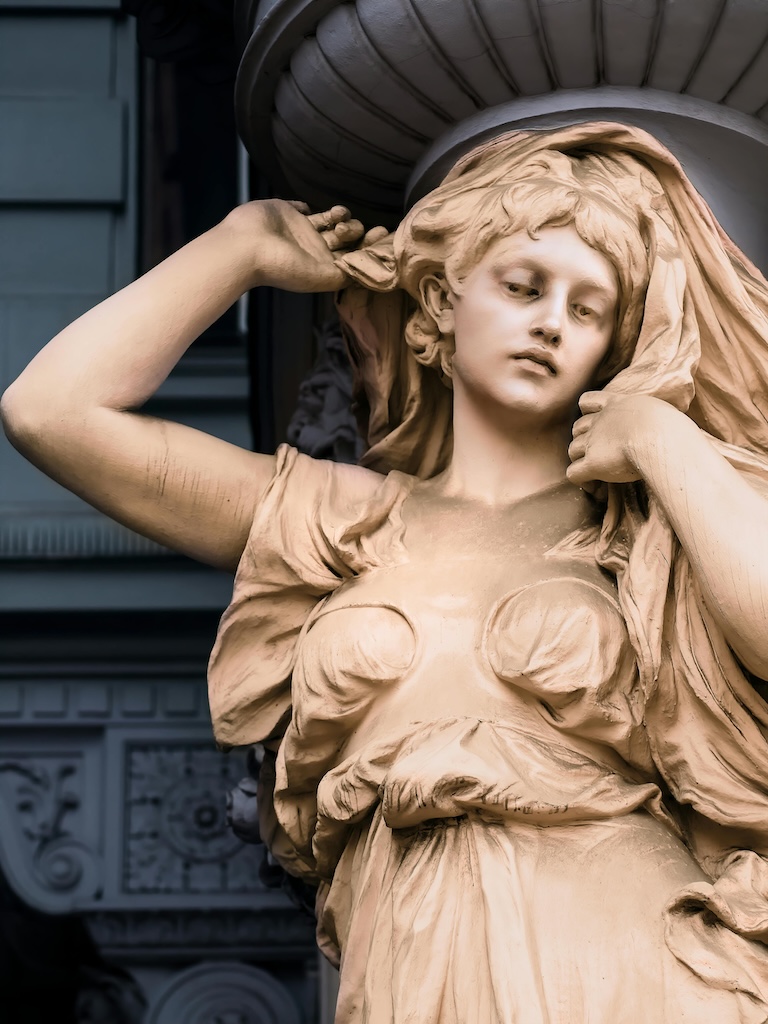
Style Transfer allows you to apply visual characteristics from reference style images to target images. While the Style Guide service extracts stylistic elements from an input image and uses them to guide the creation of an output image based on the prompt, Style Transfer specifically transforms existing content while preserving the original composition. This tool helps create consistent content across multiple assets.
Style Transfer has the following required parameters:
init_image ‐ (string) A Base64 image containing the subject you wish to restyle. Every side of the image must be at least 64 pixels. The total pixel count cannot exceed 9,437,184 pixels. Image aspect ratio must be between 1:2.5 and 2.5:1. Supported formats: jpeg, png, webp.
style_image ‐ (string) A Base64 image containing the subject you wish to restyle. Every side of the image must be at least 64 pixels. The total pixel count cannot exceed 9,437,184 pixels. Image aspect ratio must be between 1:2.5 and 2.5:1. Supported formats: jpeg, png, webp.
The following parameters are optional:
prompt ‐ (string) What you wish to see in the output image. A strong, descriptive prompt that clearly defines elements, colors, and subjects will lead to better results. To control the weight of a given word use the format (word:weight), where word is the word you'd like to control the weight of and weight is a value. A value 0 and 1.0 de-emphasized the word and a value between 1.1 and 2 emphasized the word . For example: The sky was a crisp (blue:0.3) and (green:1.8) would convey a sky that was blue and green, but more green than blue.
negative_prompt ‐ (string) A blurb of text describing what you do not wish to see in the output image. This is an advanced feature. Maximum 10000 characters.
seed ‐ (number) A specific value that is used to guide the 'randomness' of the generation. (Omit this parameter or pass 0 to use a random seed.) Range 0 to 4294967294. Default 0.
output_format ‐ (string) Dictates the content-type of the generated image. Enum: jpeg, png, webp. Default png.
composition_fidelity ‐ (number) How closely the output image's style resembles the input image's style. Range between 0 and 1. Default 0.9.
style_strength ‐ (number) Sometimes referred to as denoising, this parameter controls how much influence the style_image parameter has on the generated image. A value of 0 would yield an image that is identical to the input. A value of 1 would be as if you passed in no image at all. Range between 0 and 1. Default 1.
change_strength ‐ (number) How much the original image should change. Range between 0.1 and 1. Default 0.9.
The following table shows the input and output images of a Style Transfer call.
|
Input |
Style |
Output |
|---|---|---|
"Standing Woman Statue" |

"Blue Bright Lights" |

|
