# Using the monthly cost allocation report
The monthly cost allocation report lists the AWS usage for your account by product category and linked account user. This report contains the same line items as the detailed [AWS Cost and Usage Report](https://docs.aws.amazon.com/cur/latest/userguide/what-is-cur.html) and additional columns for your tag keys. We recommend that you use AWS Cost and Usage Report instead.
For more information about the monthly allocation report, see the following topics.
**Topics**
+ [Setting up a monthly cost allocation report](#allocation-report)
+ [Getting an hourly cost allocation report](#allocation-get)
+ [Viewing a cost allocation report](#allocation-viewing)
## Setting up a monthly cost allocation report
By default, new tag keys that you add using the API or the AWS Management Console are automatically excluded from the cost allocation report. You can add them using the procedures described in this topic.
When you select tag keys to include in your cost allocation report, each key becomes an additional column that lists the value for each corresponding line item. Because you might use tags for more than just your cost allocation report (for example, tags for security or operational reasons), you can include or exclude individual tag keys for the report. This ensures that you're seeing meaningful billing information that helps organize your costs. A small number of consistent tag keys makes it easier to track your costs. For more information, see [Viewing a cost allocation report](#allocation-viewing).
**Note**
AWS stores billing reports in an Amazon S3 bucket that you create and own. You can retrieve these reports from the bucket using the Amazon S3 API, AWS Management Console for Amazon S3, or the AWS Command Line Interface. You can't download the cost allocation report from the [Account Activity](https://console.aws.amazon.com/billing/home#/bill) page of the Billing and Cost Management console.
**To set up the cost allocation report and activate tags**
1. Sign in to the AWS Management Console and open the AWS Billing and Cost Management console at [https://console.aws.amazon.com/costmanagement/](https://console.aws.amazon.com/costmanagement/).
1. Under **Detailed billing reports (legacy)**, choose **Edit**, and then select **Legacy report delivery to S3**.
1. Choose **Configure an S3 bucket to activate** to specify where your reports are delivered.
1. In the **Configure S3 Bucket** dialog box, choose one of the following options:
+ To use an existing S3 bucket, choose **Use an existing S3 bucket**, and then select the S3 bucket.
+ To create a new S3 bucket, choose **Create a new S3 bucket**, and then for **S3 bucket name**, enter the name, and then choose the **Region**.
1. Choose **Next**.
1. Verify the default IAM policy and then select **I have confirmed that this policy is correct**.
1. Choose **Save**.
1. In the **Report** list, select the check box for **Cost allocation report**, and then choose **Activate**.
1. Choose **Manage Report Tags**.
The page displays a list of tags that you've created using either the API or the console for the applicable AWS service. Tag keys that currently appear in the report are selected. Tag keys that are excluded aren't selected.
1. You can filter tags that are **Inactive** in the dropdown list, and then select the tags that you want to activate for your report.
1. Choose **Activate**.
If you own the management account in an organization, your cost allocation report includes all the usage, costs, and tags for the member accounts. By default, all keys registered by member accounts are available for you to include or exclude from your report. The detailed billing report with resources and tags also includes any cost allocation tag keys that you select using the preceding steps.
## Getting an hourly cost allocation report
The cost allocation report is one of several reports that AWS publishes to an Amazon S3 bucket several times a day.
**Note**
During the current billing period (monthly), AWS generates an estimated cost allocation report. The current month's file is overwritten throughout the billing period until a final report is generated at the end of the billing period. Then a new file is created for the next billing period. The reports for the previous months remain in the designated Amazon S3 bucket.
## Viewing a cost allocation report
The following example tracks the charges for several cost centers and applications. Resources (such as Amazon EC2 instances and Amazon S3 buckets) are assigned tags like "Cost Center"="78925" and "Application"="Widget1". In the cost allocation report, the user-defined tag keys have the prefix `user`, such as `user:Cost Center` and `user:Application`. AWS-generated tag keys have the prefix `aws`. The keys are column headings identifying each tagged line item's value, such as "78925".
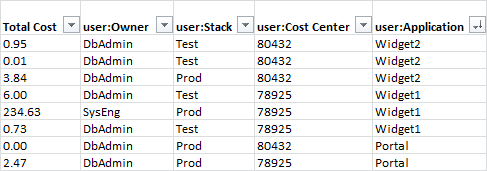
Pick your keys carefully so that you have a consistent hierarchy of values. Otherwise, your report won't group costs effectively, and you will have many line items.
**Note**
If you add or change the tags on a resource partway through a billing period, costs are split into two separate lines in your cost allocation report. The first line shows costs before the update, and the second line shows costs after the update.
### Unallocated resources in your report
Any charges that cannot be grouped by tags in your cost allocation report default to the standard billing aggregation (organized by Account/Product/Line Item) and are included in your report. Situations where you can have unallocated costs include:
+ You signed up for a cost allocation report mid-month.
+ Some resources aren't tagged for part, or all, of the billing period.
+ You are using services that currently don't support tagging.
+ Subscription-based charges, such as AWS Support and AWS Marketplace monthly fees, can't be allocated.
+ One-time fees, such as Amazon EC2 Reserved Instance upfront charges, can't be allocated.
### Unexpected costs associated with tagged resources
You can use cost allocation tags to see what resources are contributing to your usage and costs, but deleting or deactivating the resources doesn't always reduce your costs. For more information on reducing unexpected costs, see [Understanding unexpected charges](checklistforunwantedcharges.md).