Using a SQL Server client to connect to your DB cluster
You can use a SQL Server client to connect with Babelfish on the TDS port. As of Babelfish 2.1.0 and higher releases, you can use the SSMS Object Explorer or the SSMS Query Editor to connect to your Babelfish cluster.
Limitations
-
Babelfish doesn't support MARS (Multiple Active Result Sets). Be sure that any client applications that you use to connect to Babelfish aren't set to use MARS.
For more information about interoperability and behavioral differences between SQL Server and Babelfish, see Differences between Babelfish for Aurora PostgreSQL and SQL Server.
Using sqlcmd to connect to the DB cluster
You can connect to and interact with an Aurora PostgreSQL DB cluster that supports
Babelfish by SQL Server sqlcmd command line client.
Use the following command to connect.
sqlcmd -Sendpoint,port-Ulogin-id-Ppassword-dyour-DB-name
The options are as follows:
-
-Sis the endpoint and (optional) TDS port of the DB cluster. -
-Uis the login name of the user. -
-Pis the password associated with the user. -
-dis the name of your Babelfish database.
After connecting, you can use many of the same commands that you use with SQL Server. For some examples, see Getting information from the Babelfish system catalog.
Using SSMS to connect to the DB cluster
You can connect to an Aurora PostgreSQL DB cluster running Babelfish by
using Microsoft SQL Server Management Studio (SSMS). SSMS includes a variety of
tools, including the SQL Server Import amd Export Wizard discussed in Migrating a SQL Server database to Babelfish for Aurora PostgreSQL. For
more information about SSMS, see Download SQL Server Management Studio (SSMS)
Note
SSMS version 19.2 and later requires Babelfish version 3.5.0 (Aurora PostgreSQL 15.6) or higher to display databases in Object Explorer.
To connect to your Babelfish database with SSMS
-
Start SSMS.
-
Open the Connect to Server dialog box. To continue with the connection, do one of the following:
-
Choose New Query.
-
If the Query Editor is open, choose Query, Connection, Connect.
-
-
Provide the following information for your database:
-
For Server type, choose Database Engine.
-
For Server name, enter the DNS name. For example, your server name should look similar to the following.
cluster-name.cluster-555555555555.aws-region.rds.amazonaws.com,1433 -
For Authentication, choose SQL Server Authentication.
-
For Login, enter the user name that you chose when you created your database.
-
For Password, enter the password that you chose when you created your database.

Note
Babelfish 5.1.0 and later versions use TLS by default. You can either install the root CA certificate on the client or select the Trust server certificate checkbox on the Login tab.
-
-
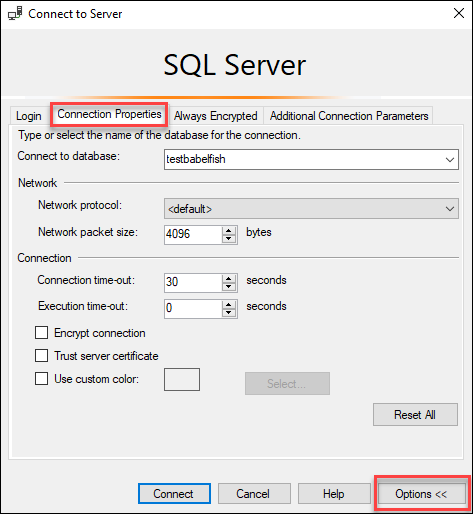
(Optional) Choose Options, and then choose the Connection Properties tab.
-
(Optional) For Connect to database, specify the name of the migrated SQL Server database to connect to, and choose Connect.
If a message appears indicating that SSMS can't apply connection strings, choose OK.
If you are having trouble connecting to Babelfish, see Connection failure.
For more information about SQL Server connection issues, see Troubleshooting connections to your SQL Server DB instance in the Amazon RDS User Guide.
